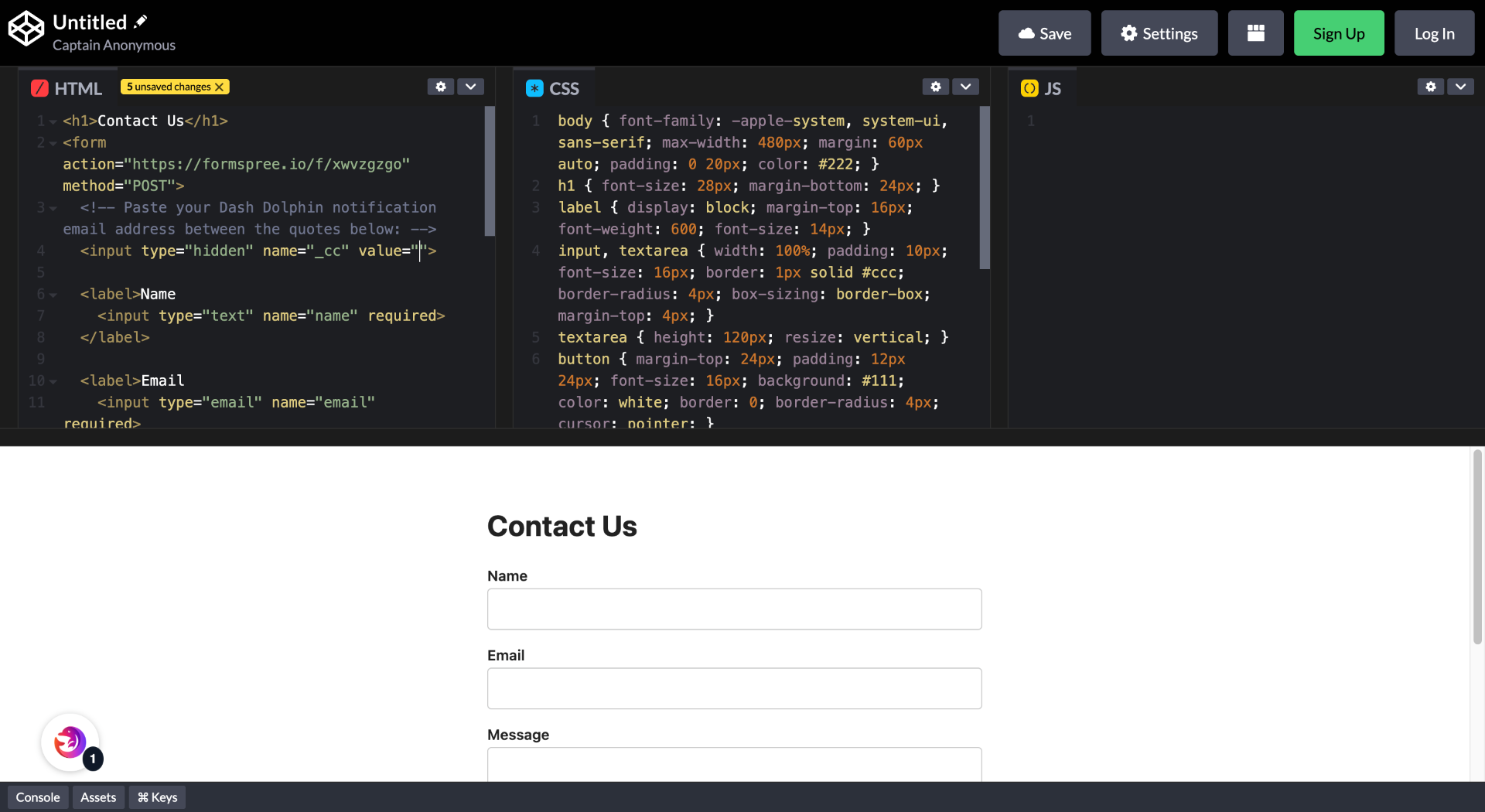
Dash Dolphin reads your form's notification email, so add the Dash Dolphin address as an extra recipient wherever your form already sends notifications today. Where that lives depends on your setup. Here the form posts to Formspree, which accepts a _cc hidden input in your HTML — that's where we add it. Other form services have their own field; for server-side scripts, add it as a recipient or BCC there.
1. Introduction
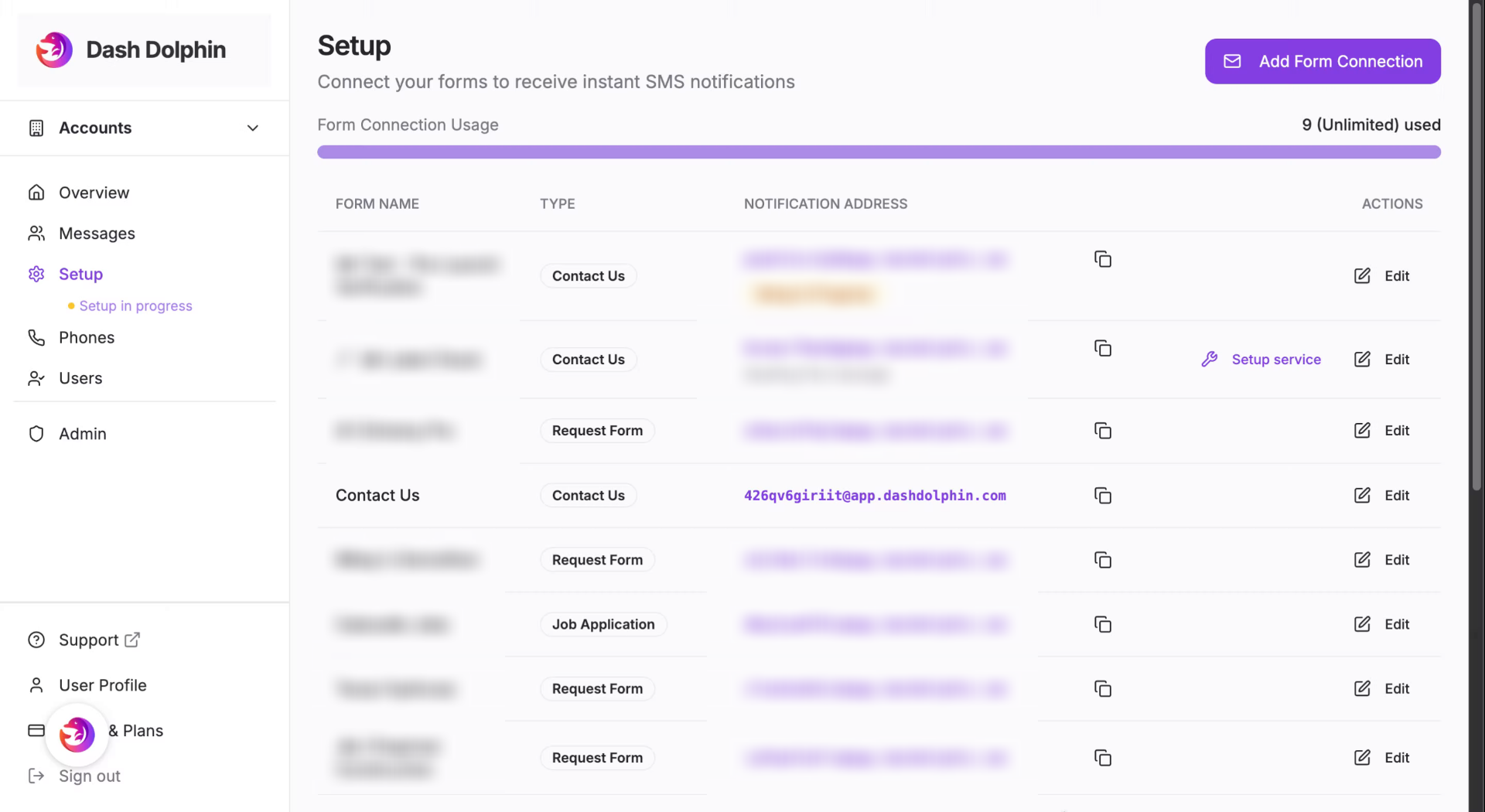
2. Copy Notification Email
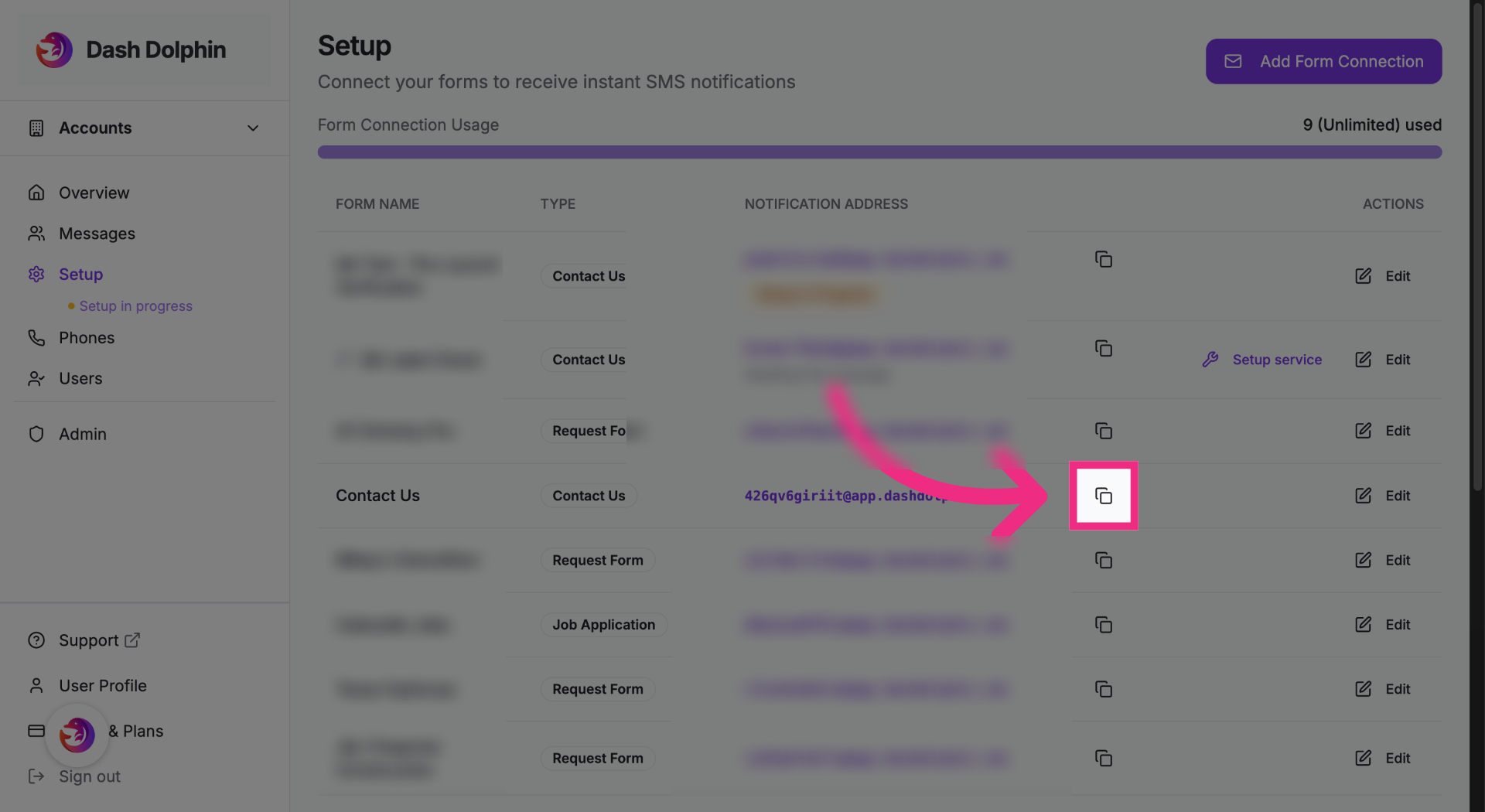
Copy the notification email address from your Dash Dolphin connection.
3. Switch To CodePen Platform
Open your form's code in your editor.
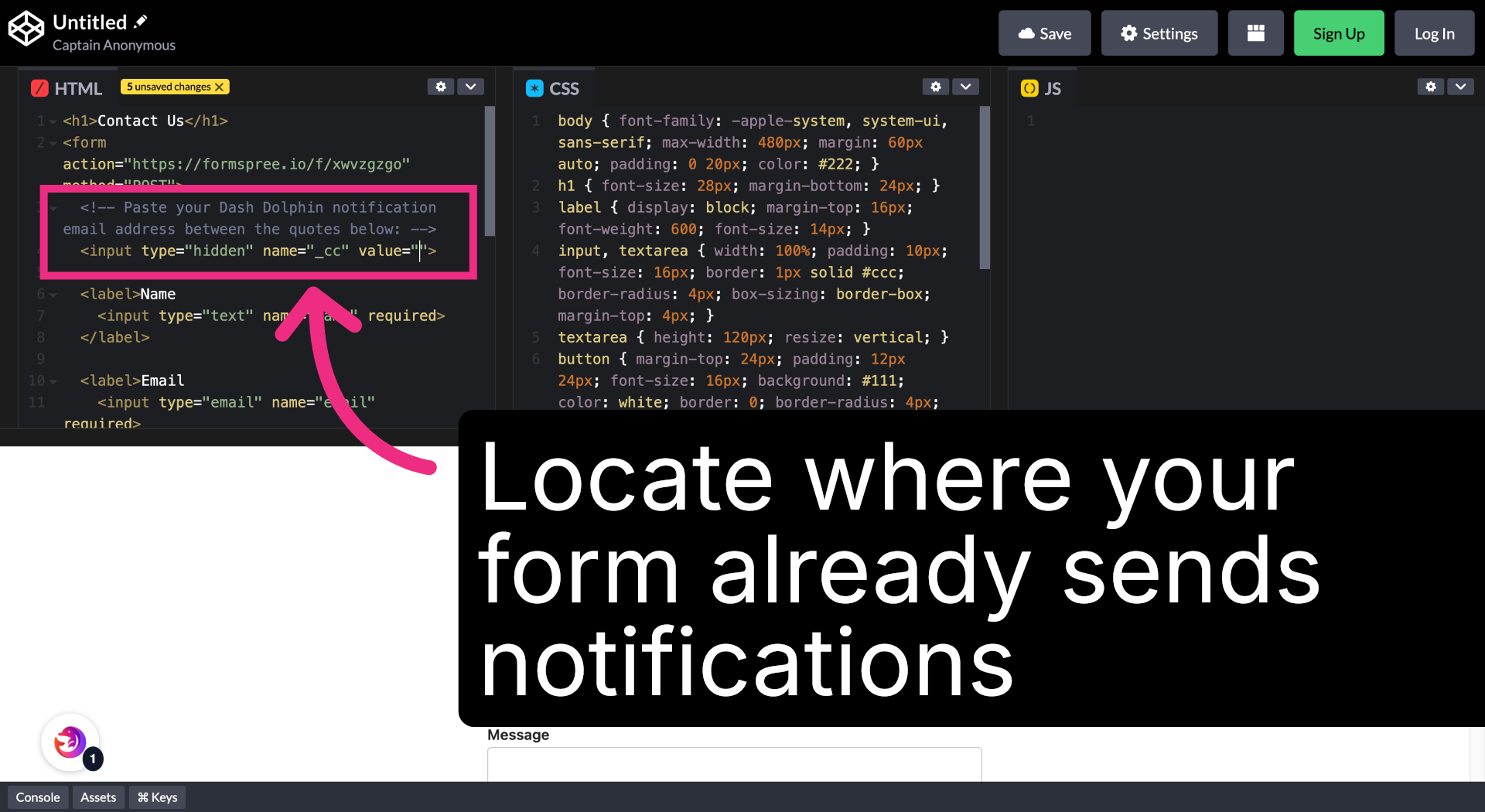
4. Find the Notification Recipient
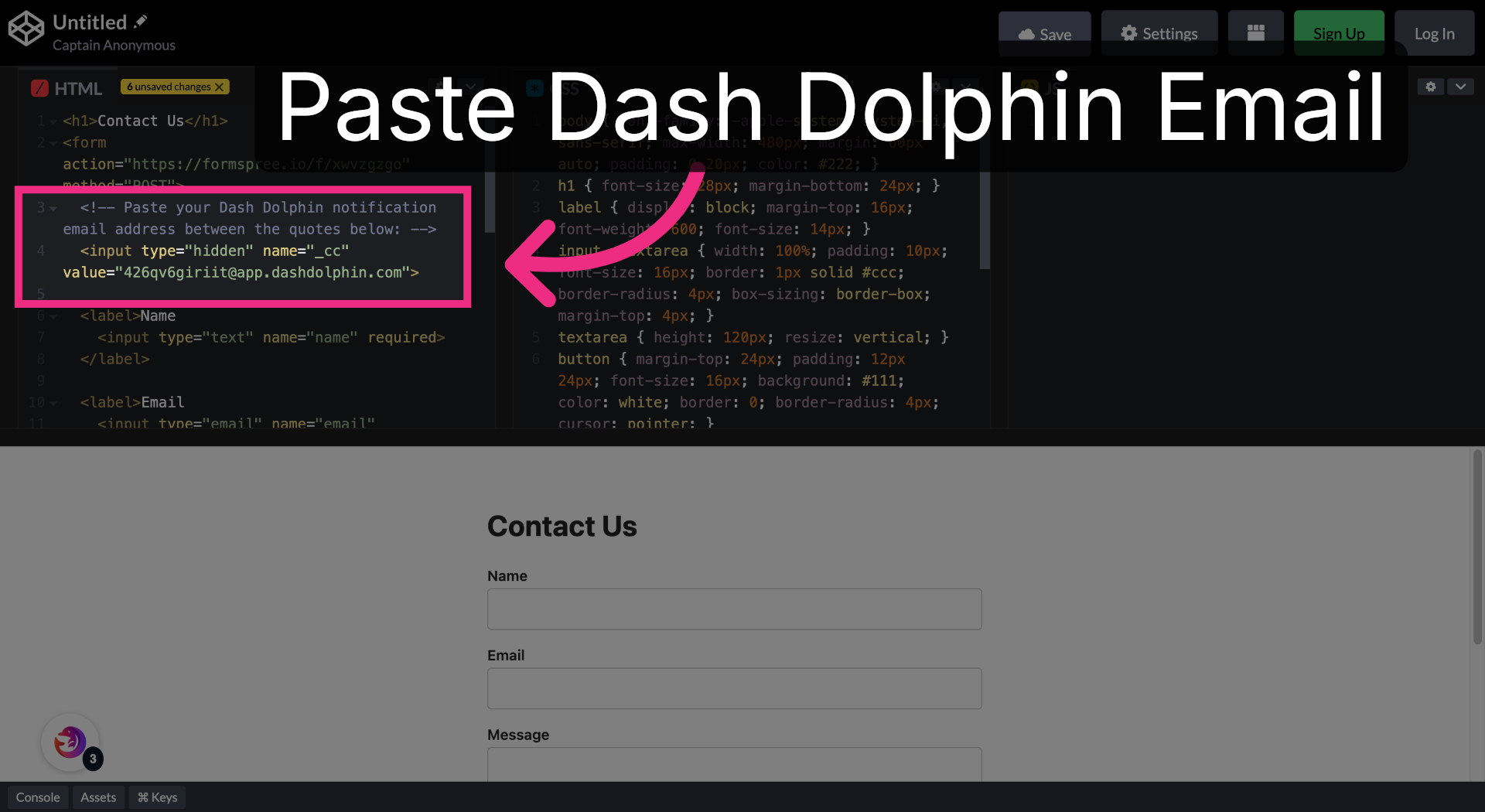
Find where your form sends notifications. In this example it's the form's hidden _cc field.
5. Add the Dash Dolphin Email
Paste the Dash Dolphin notification email address as an additional recipient.
6. Save and Republish
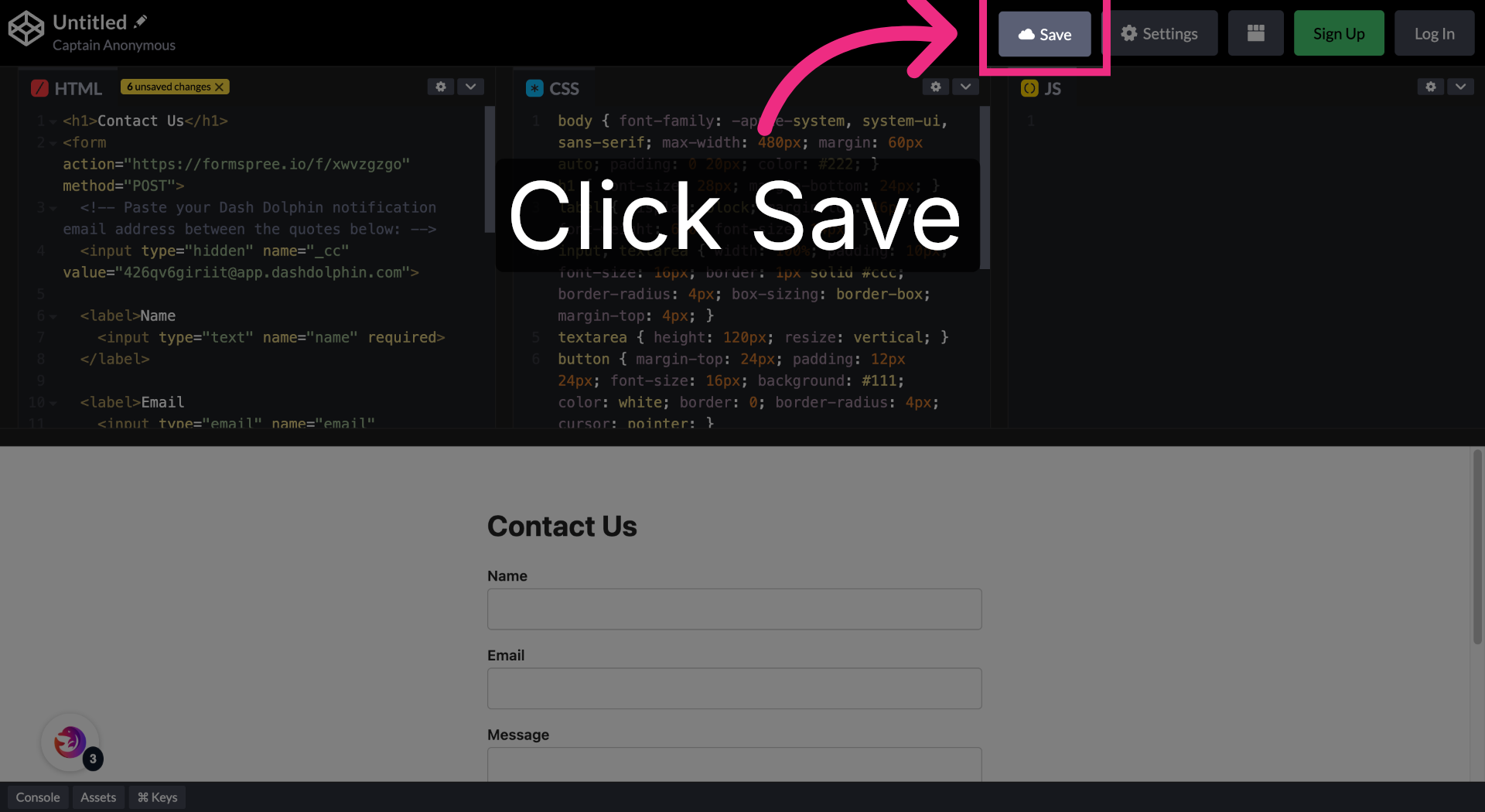
Save your changes, then republish or redeploy your live form so the change goes live.
You have successfully connected your form to Dash Dolphin. Submit a test entry and confirm that both your own notification and the Dash Dolphin SMS arrive.
