Once you've created your connection and received your notification email address, you can configure your Fluent Forms form to forward submissions to Dash Dolphin.
1. Introduction
This guide shows you how to send your Fluent Forms submissions to Dash Dolphin for instant SMS alerts.
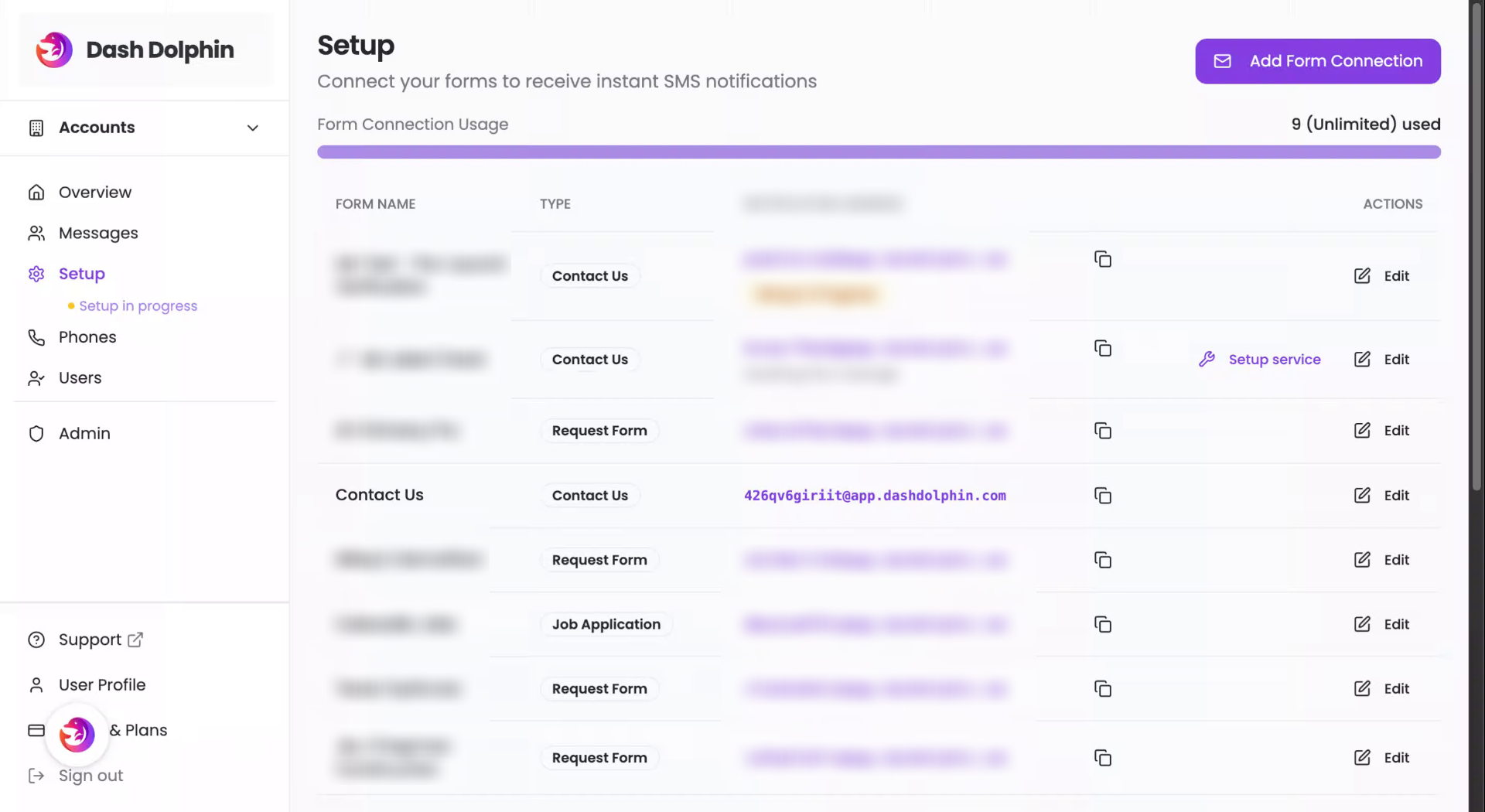
2. Access Notification Settings
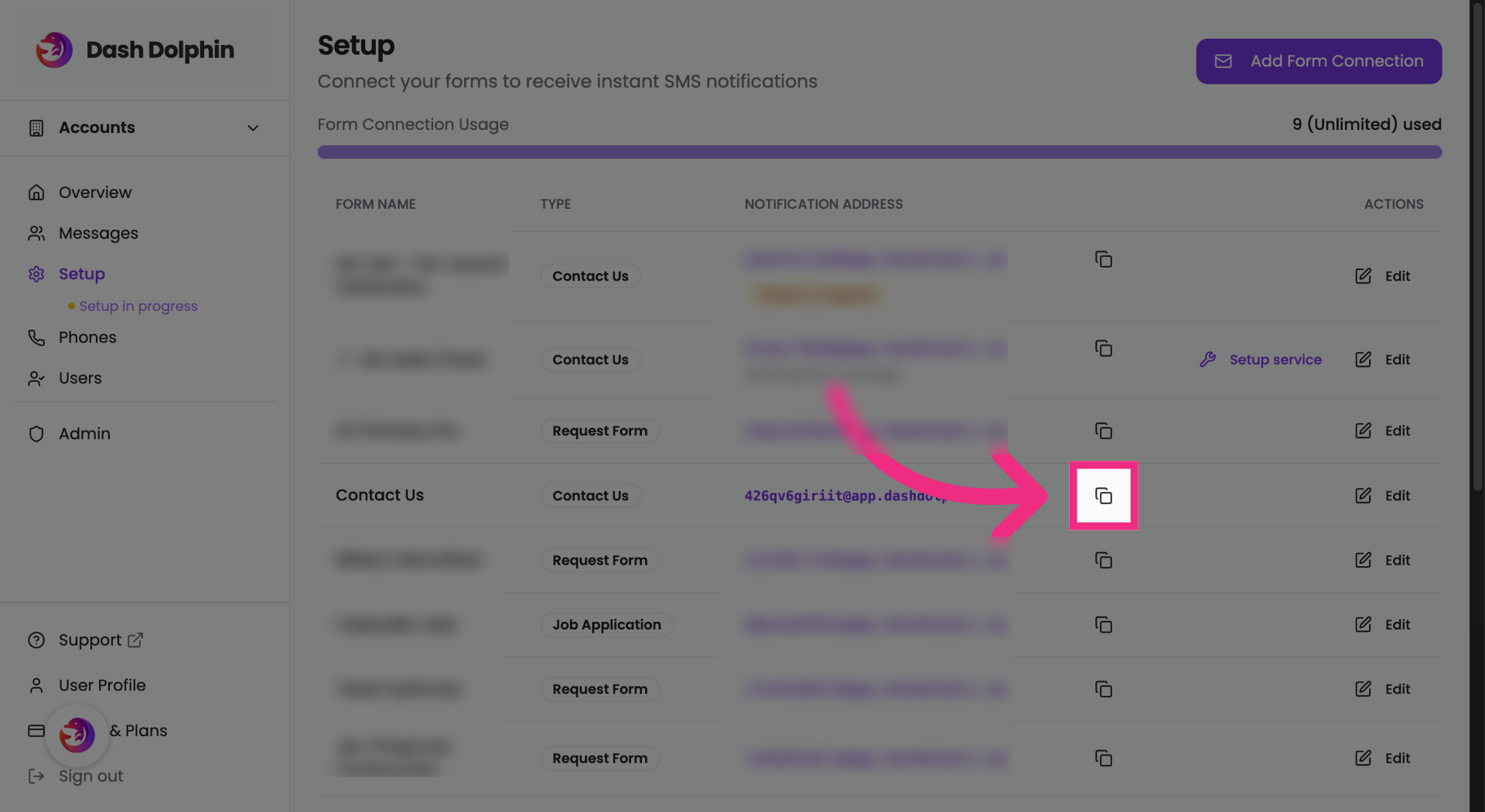
Copy the notification email address from your Dash Dolphin connection.
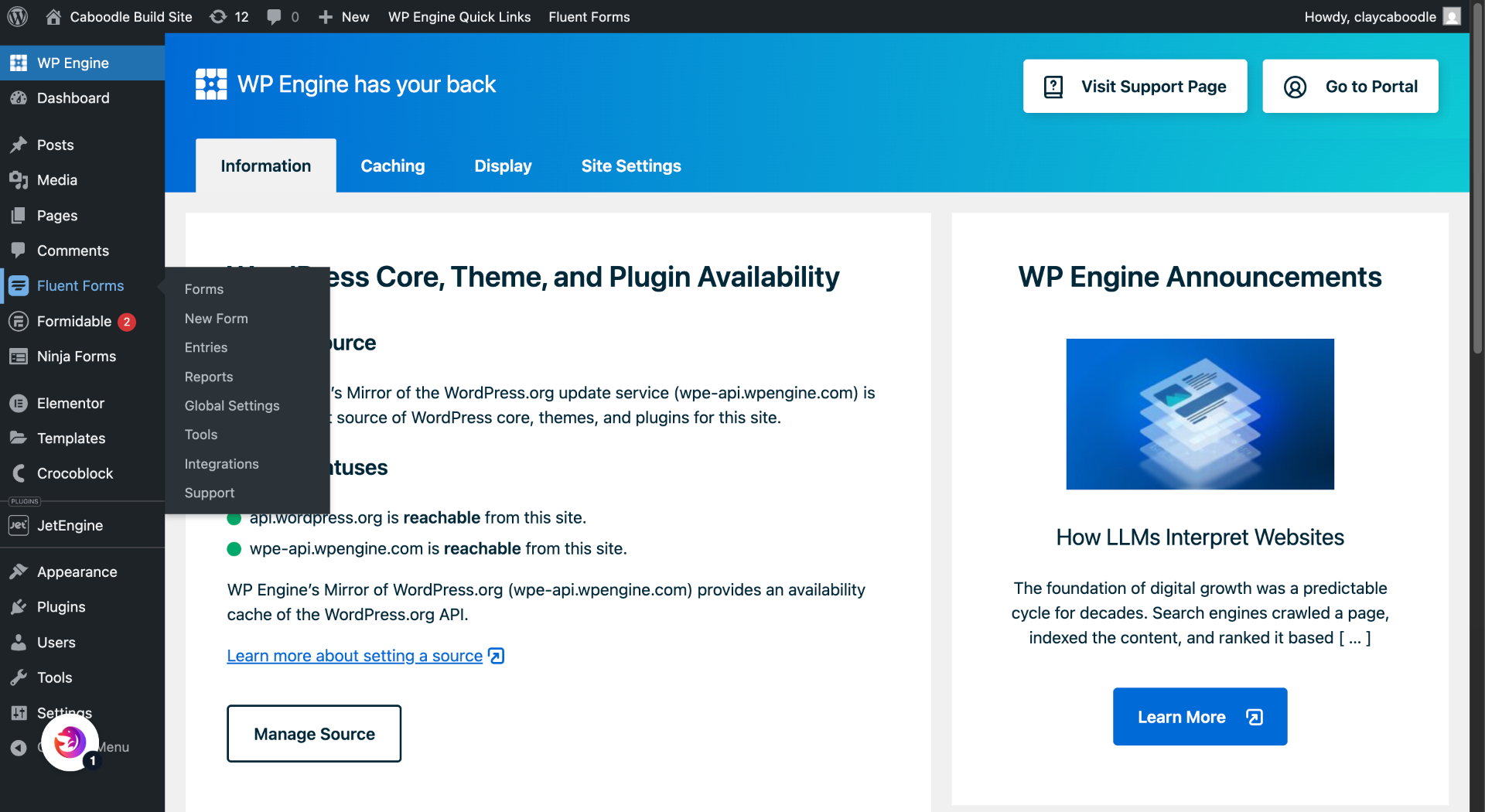
3. Switch to WordPress Site
Open your WordPress dashboard.
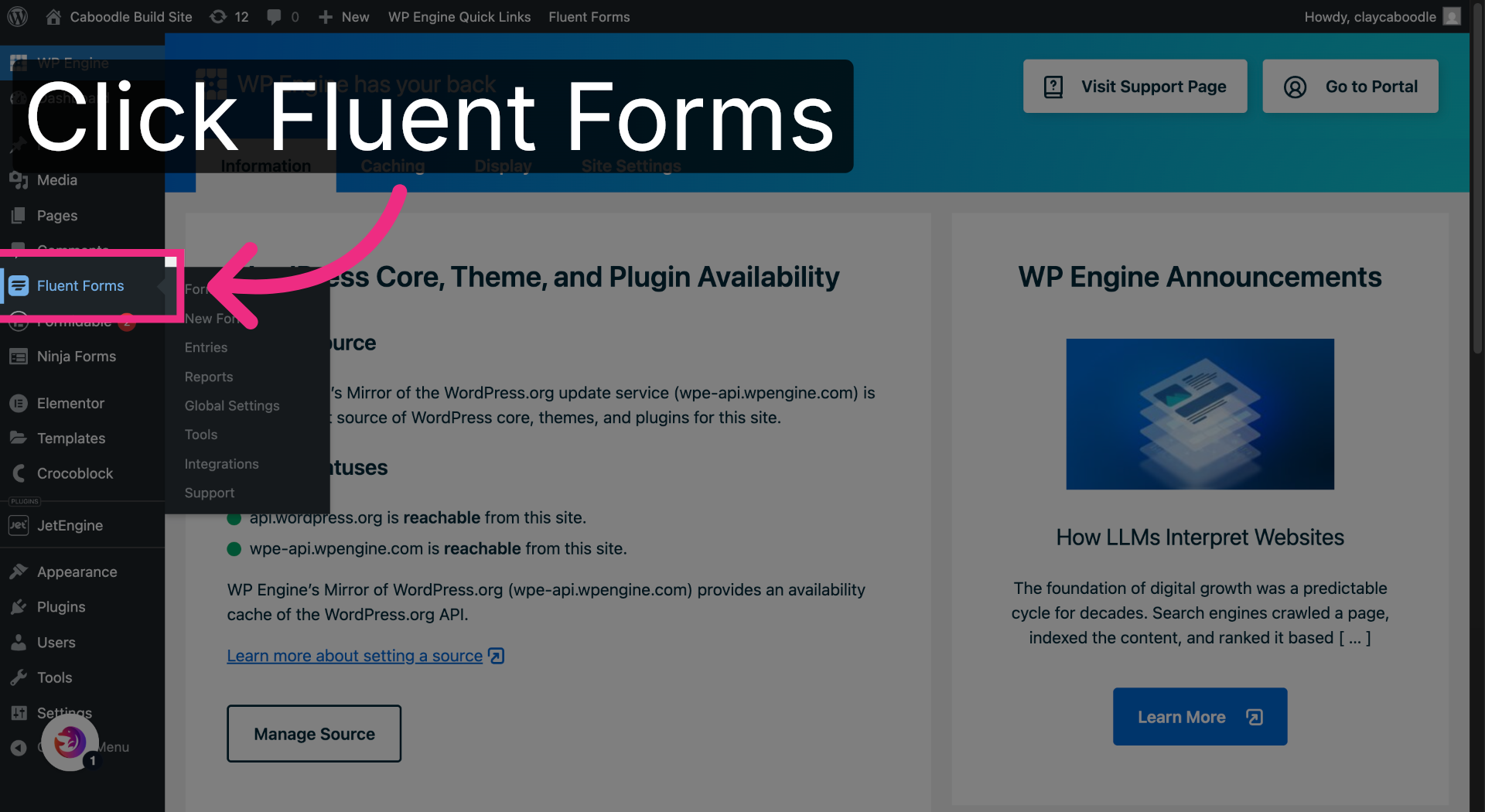
4. Open Fluent Forms Plugin
Open the Fluent Forms plugin.
5. Access Form Settings
Open the settings for your contact form.
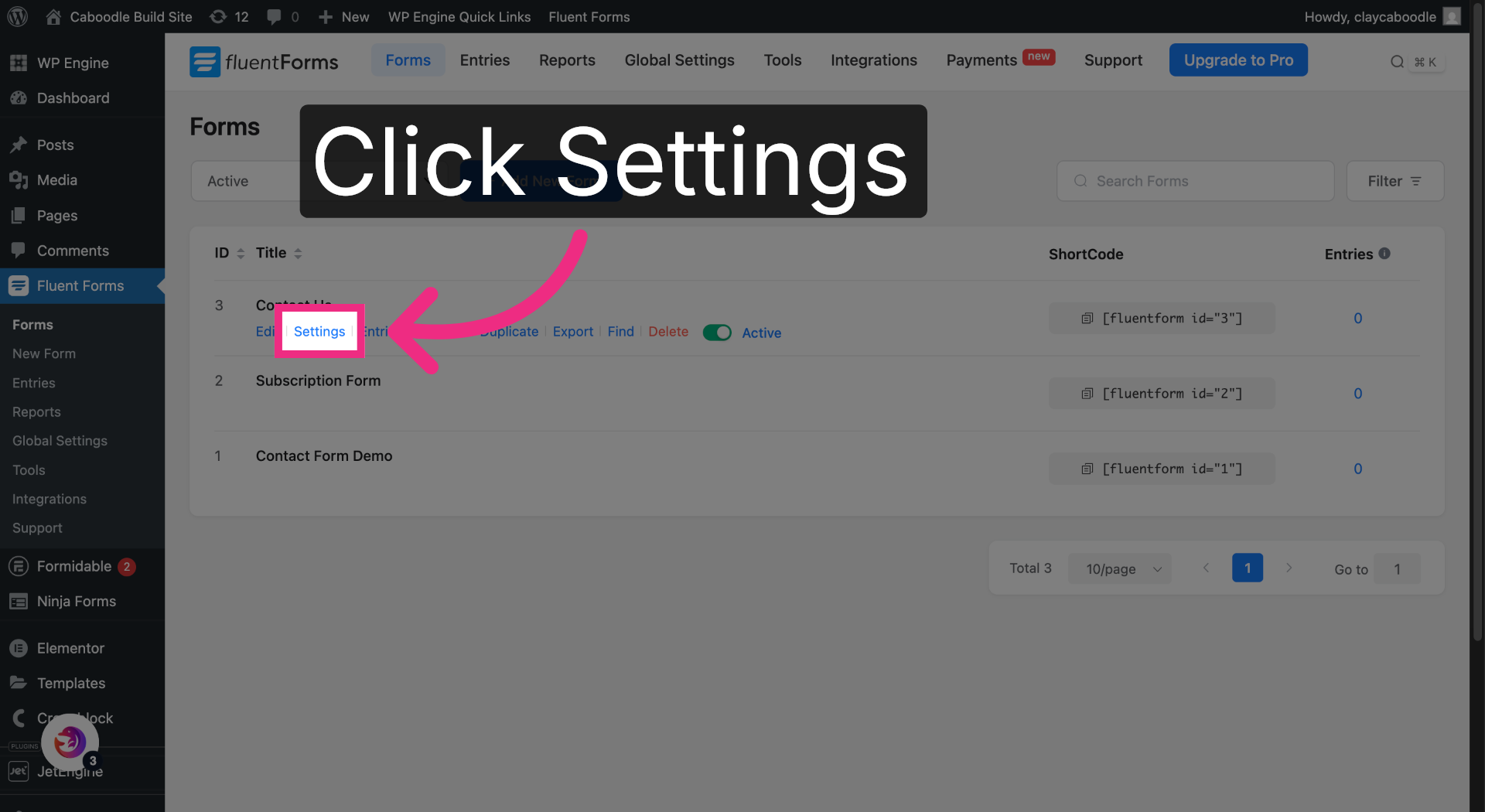
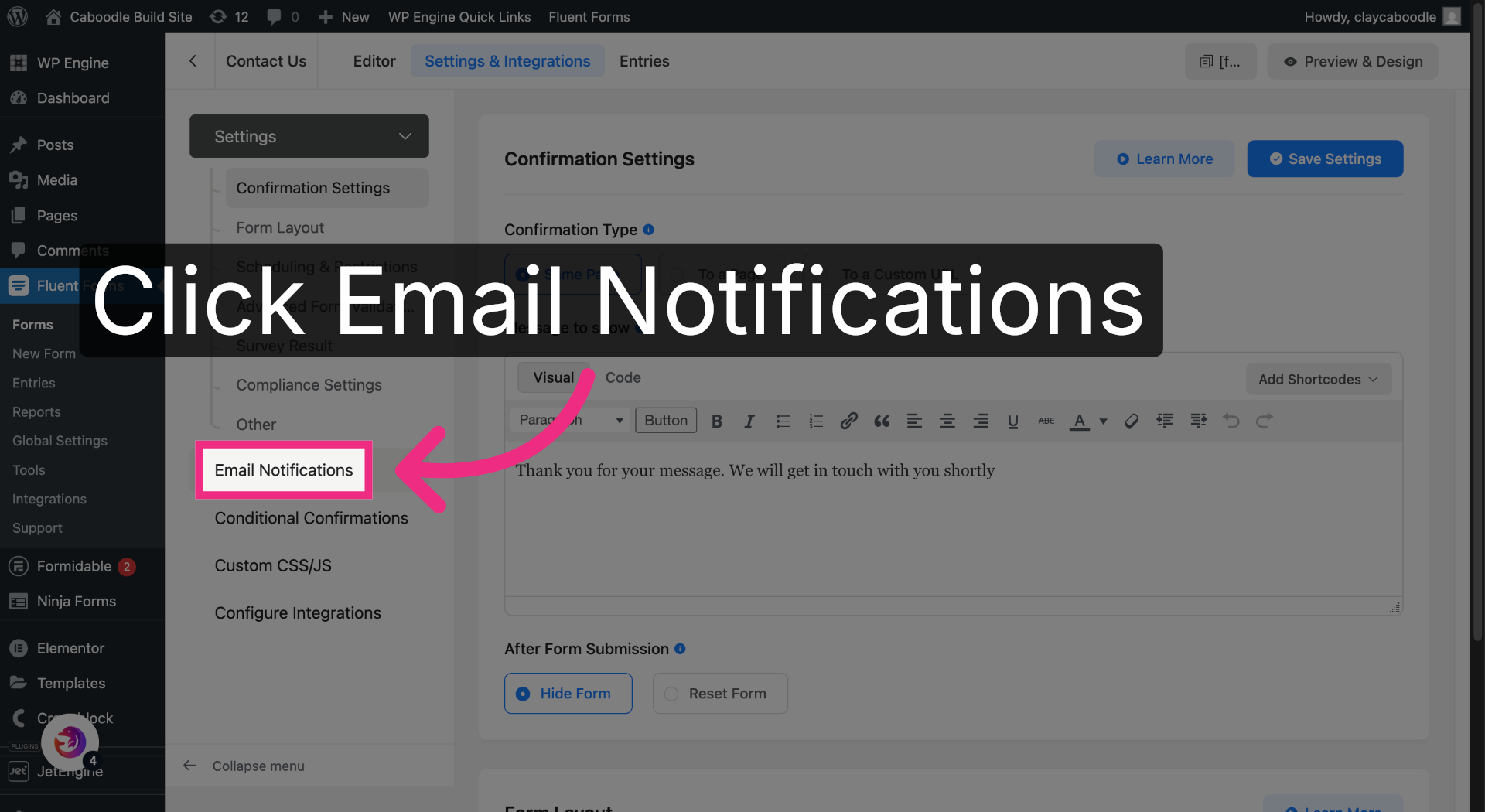
6. Open Email Notifications
Open the email notifications panel.
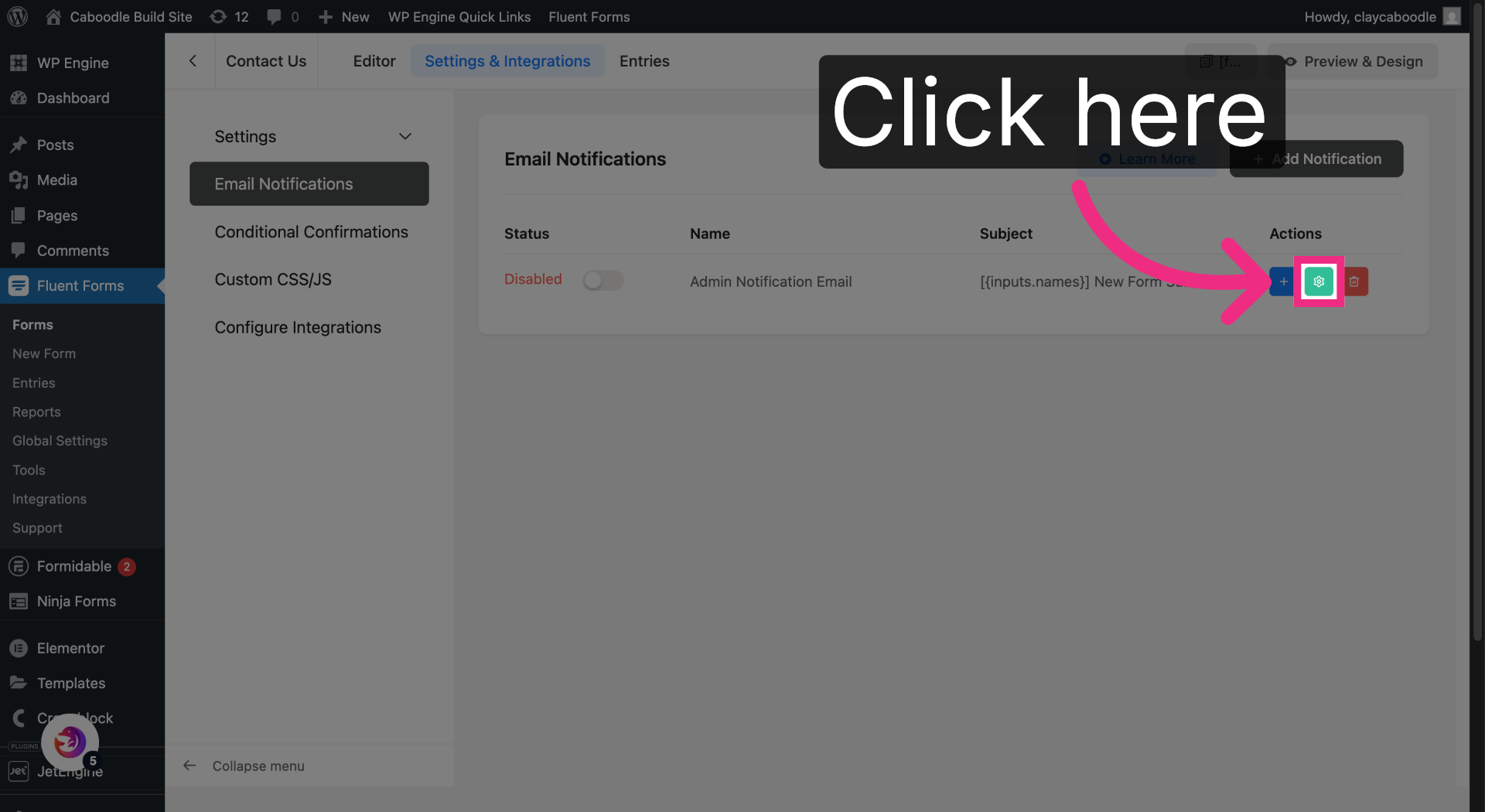
7. Add New Notification
Open your form's admin notification.
8. Select Admin Email
Open the Send To email field.
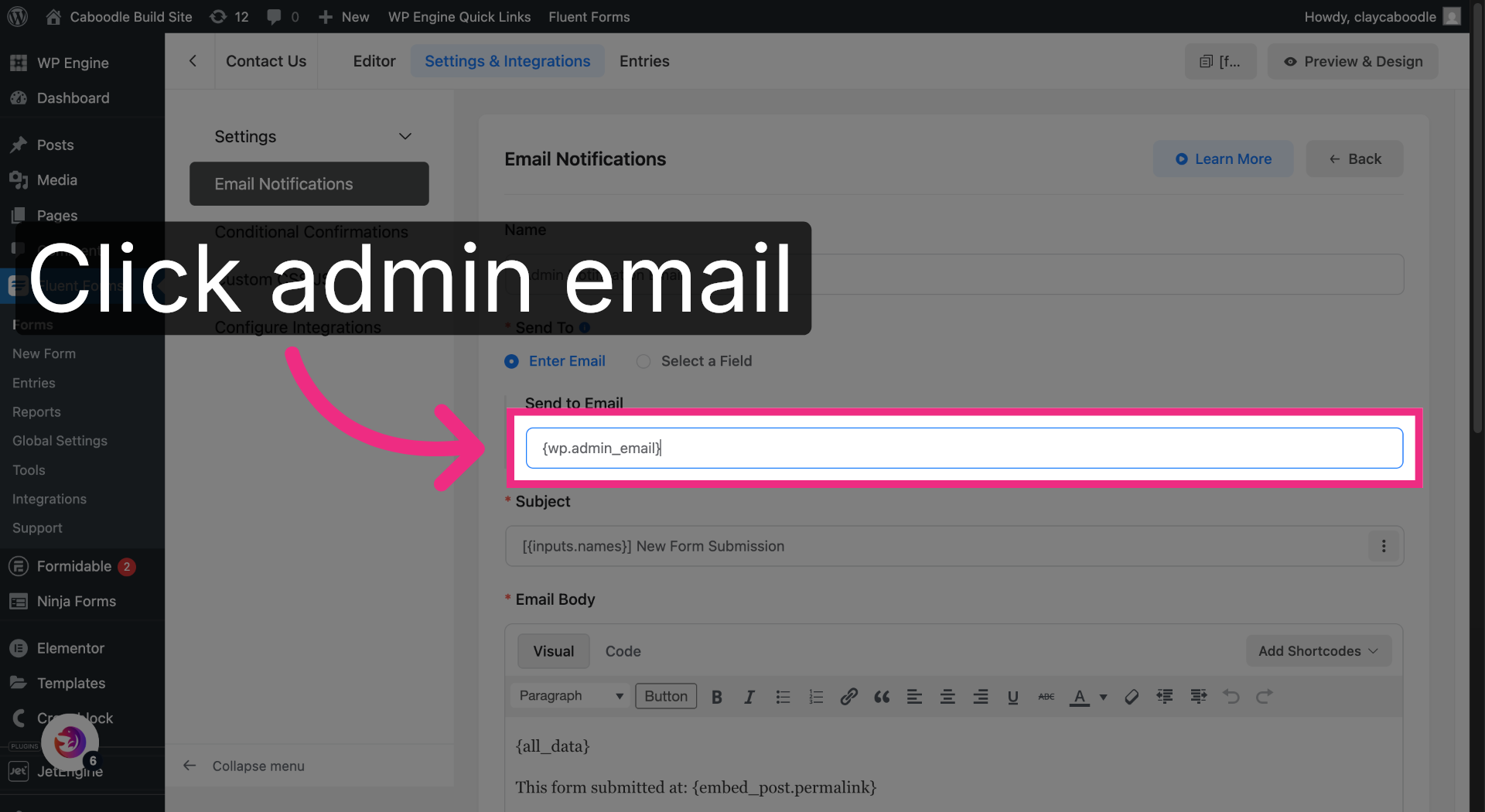
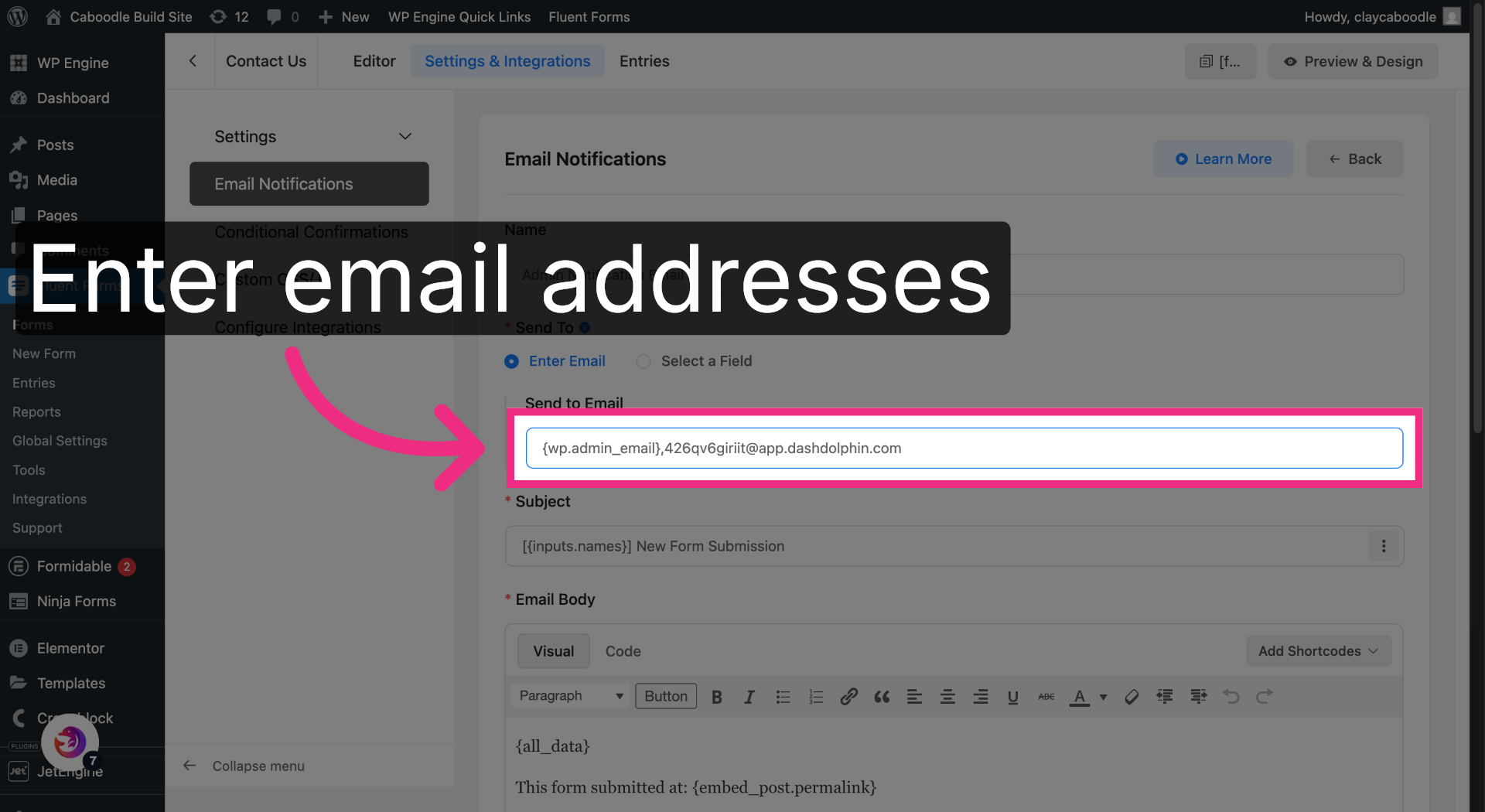
9. Enter Notification Emails
Add the Dash Dolphin notification email address after your existing admin email, separated by a comma.
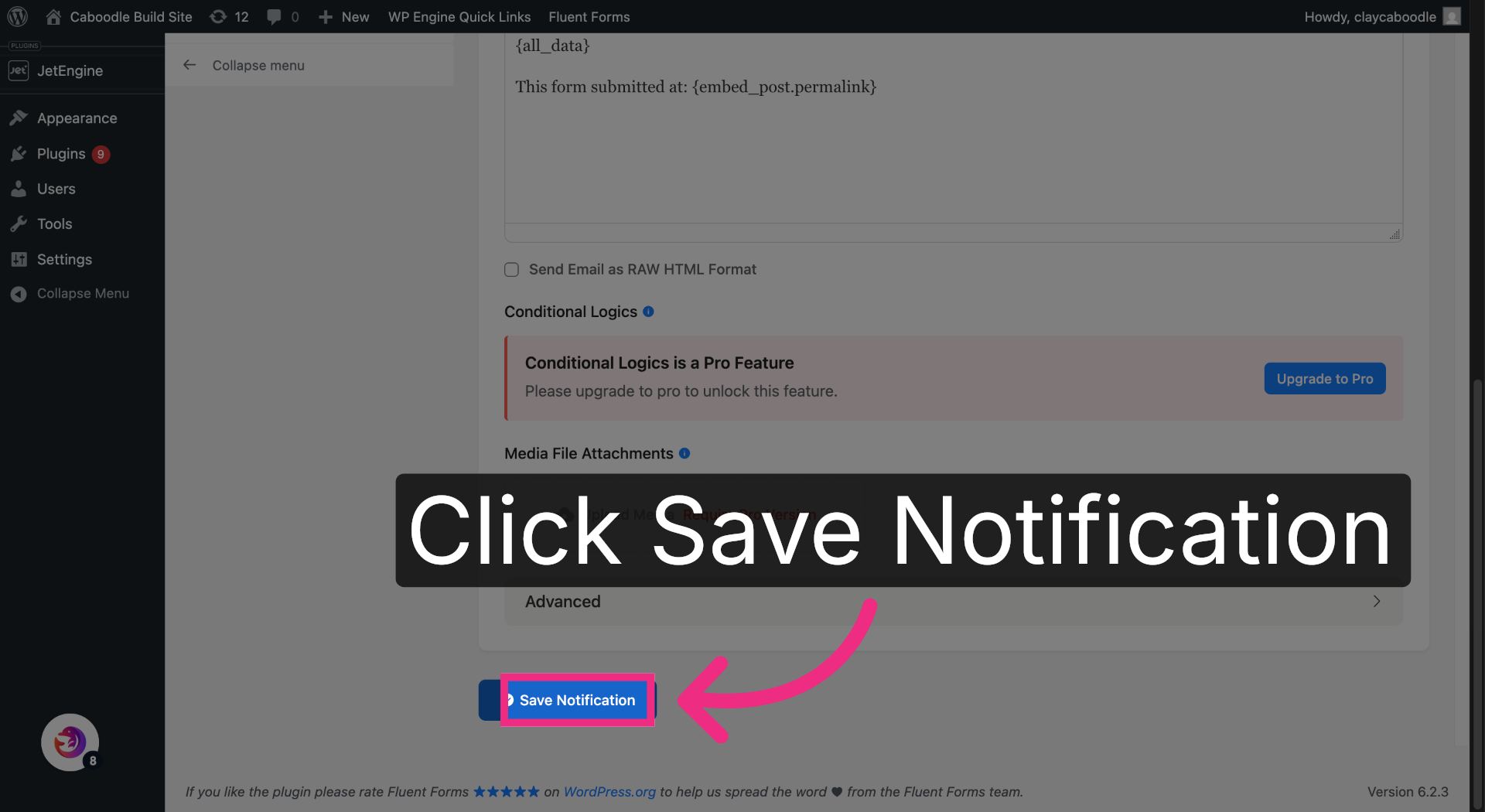
10. Save Notification Settings
Save your changes.
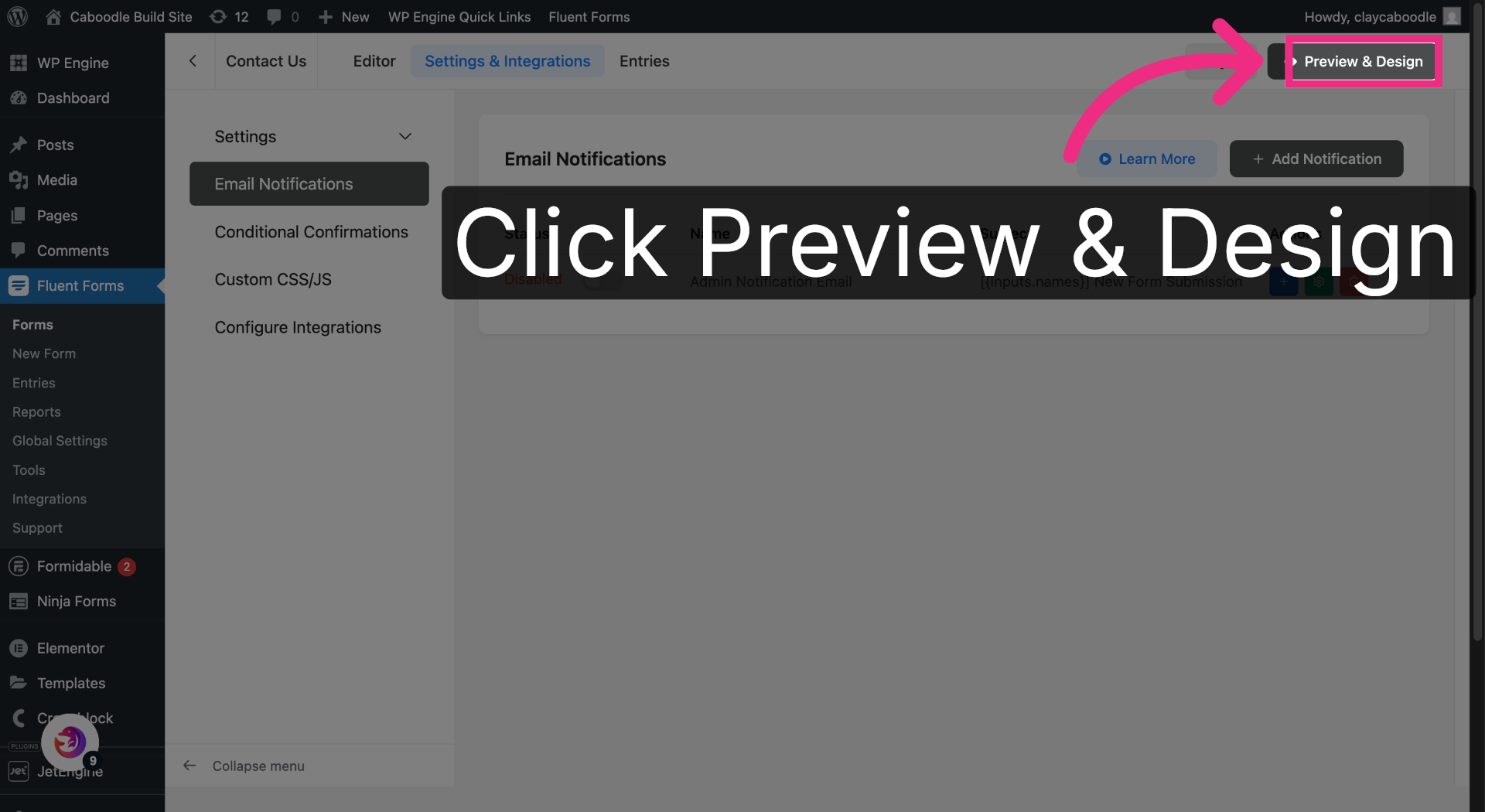
11. Preview Email Design
Preview the form and submit a test entry to confirm SMS delivery.
You have successfully configured your Fluent Forms form to send notification emails to Dash Dolphin, enabling instant SMS alerts. Test the setup by submitting a form and verifying the SMS notification delivery.
