To use Dash Dolphin with HubSpot, you'll need Marketing Hub Pro and a pre-saved marketing email template for automation. Once those are in place, here's how to configure your HubSpot form to forward submissions to Dash Dolphin.
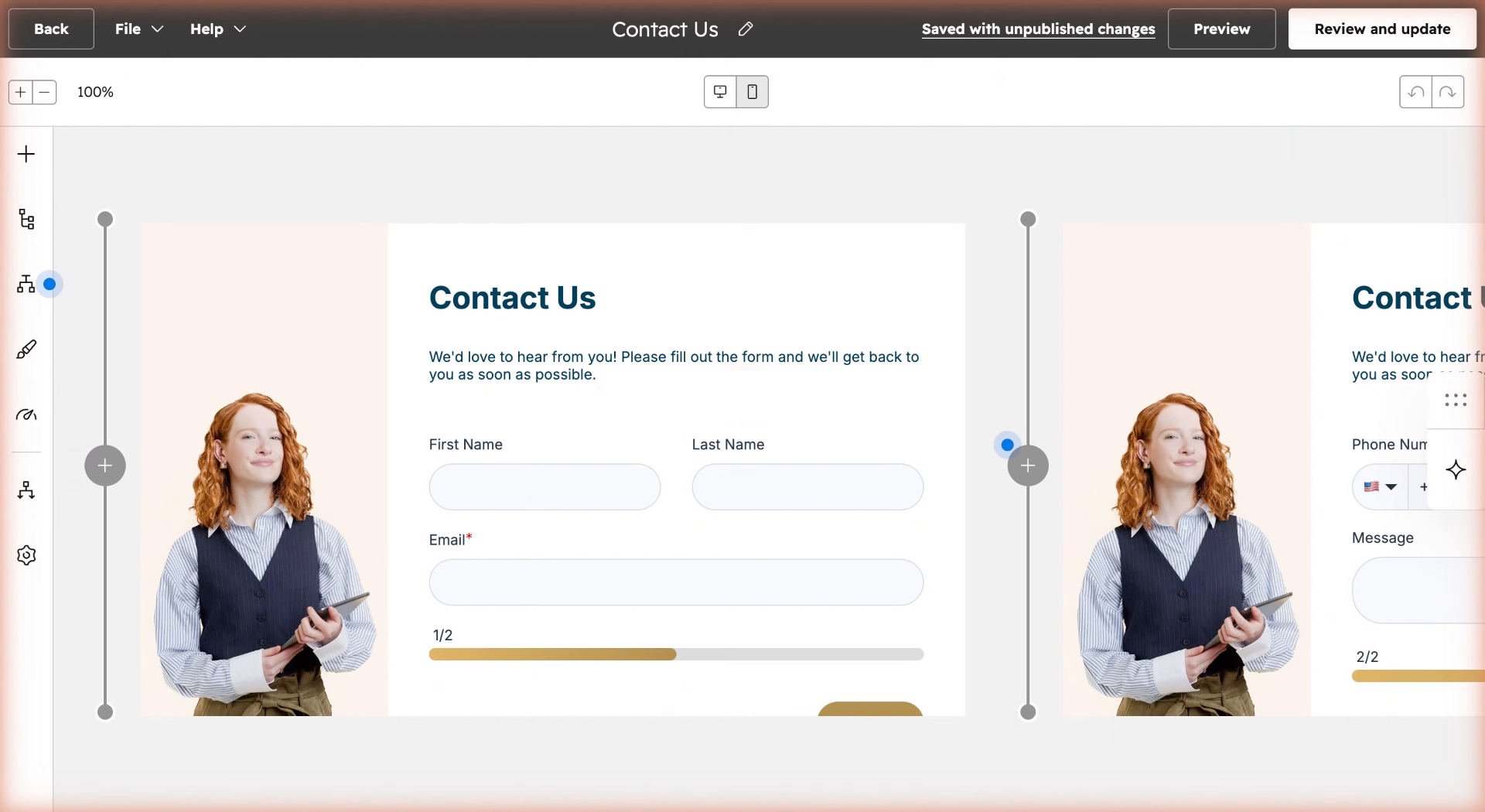
1. Open the HubSpot Form
Open the HubSpot form you want to connect.
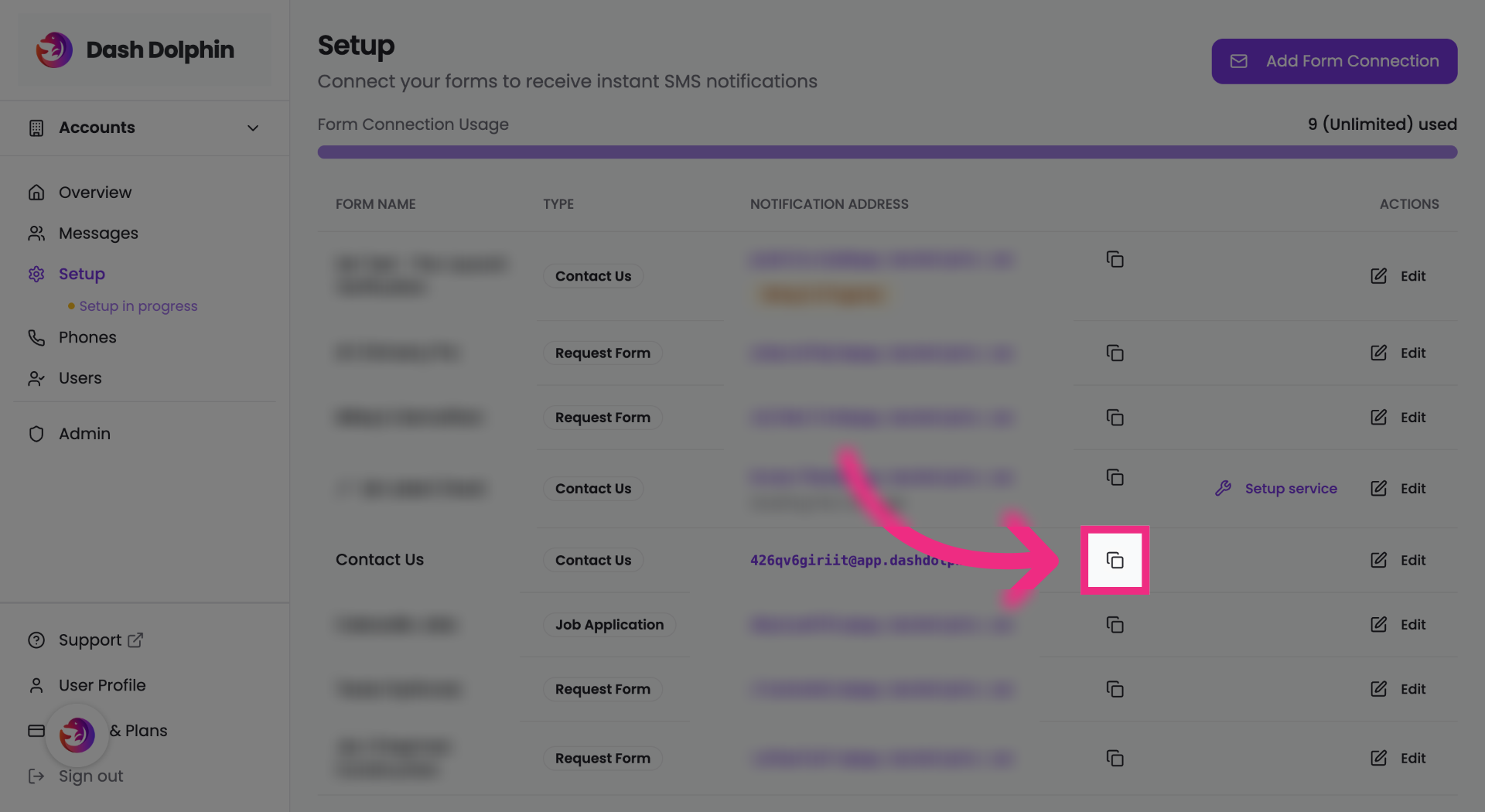
2. Copy Notification Email
Copy the notification email address from your Dash Dolphin connection.
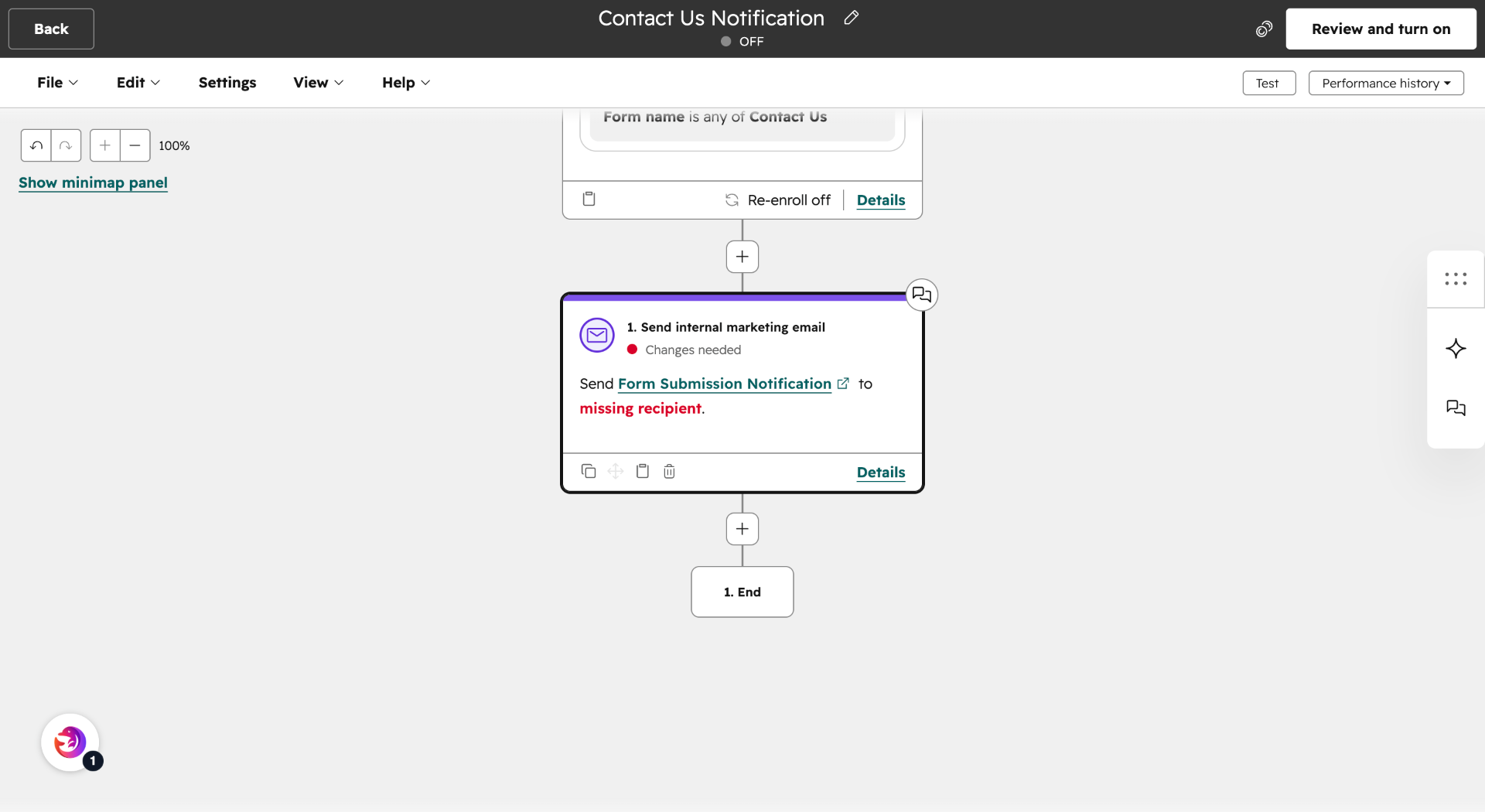
3. Open the HubSpot Workflow
Switch to the HubSpot workflow that handles your form submissions.
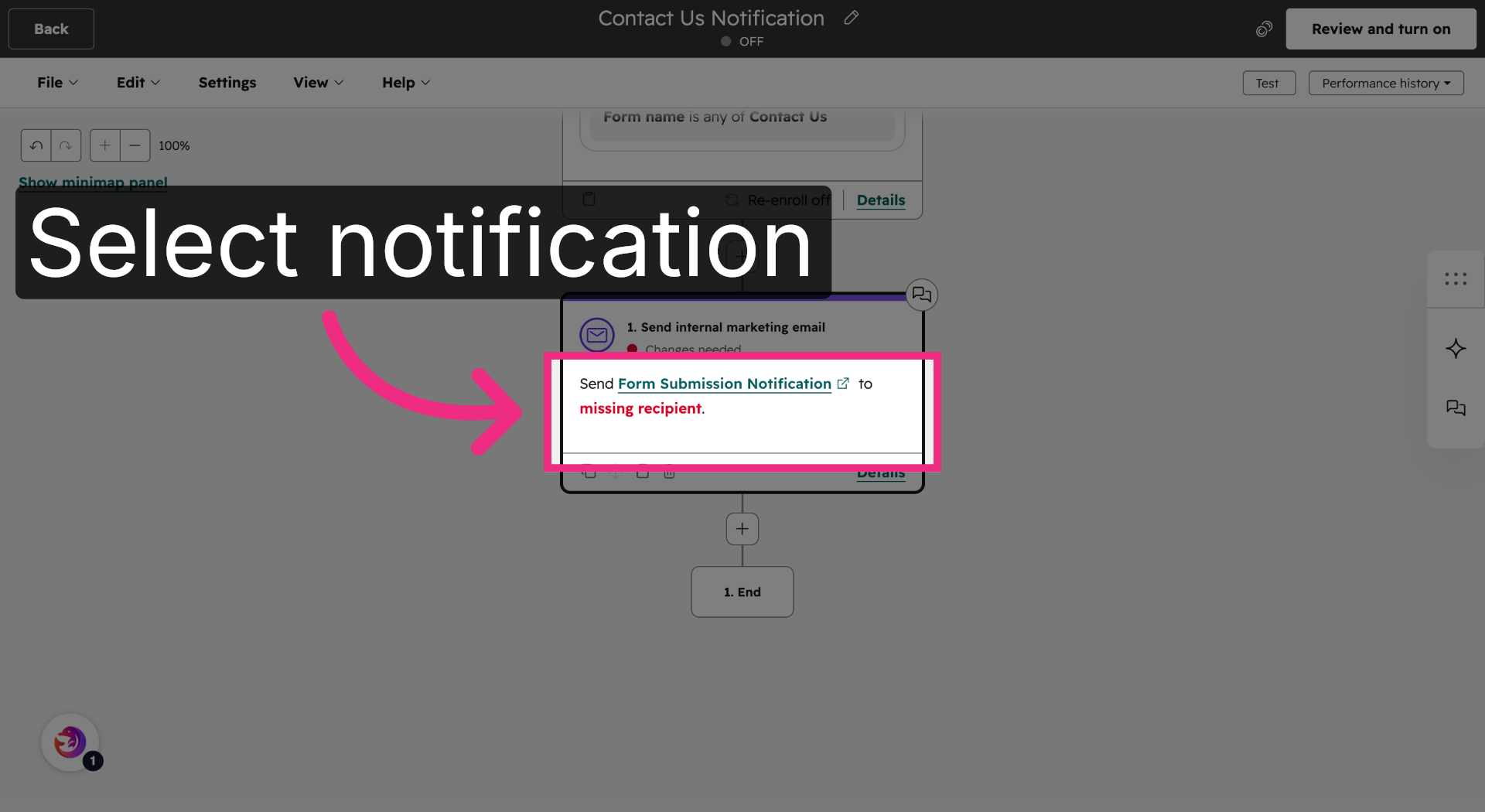
4. Open the Workflow Action
Open the Send internal marketing email action.
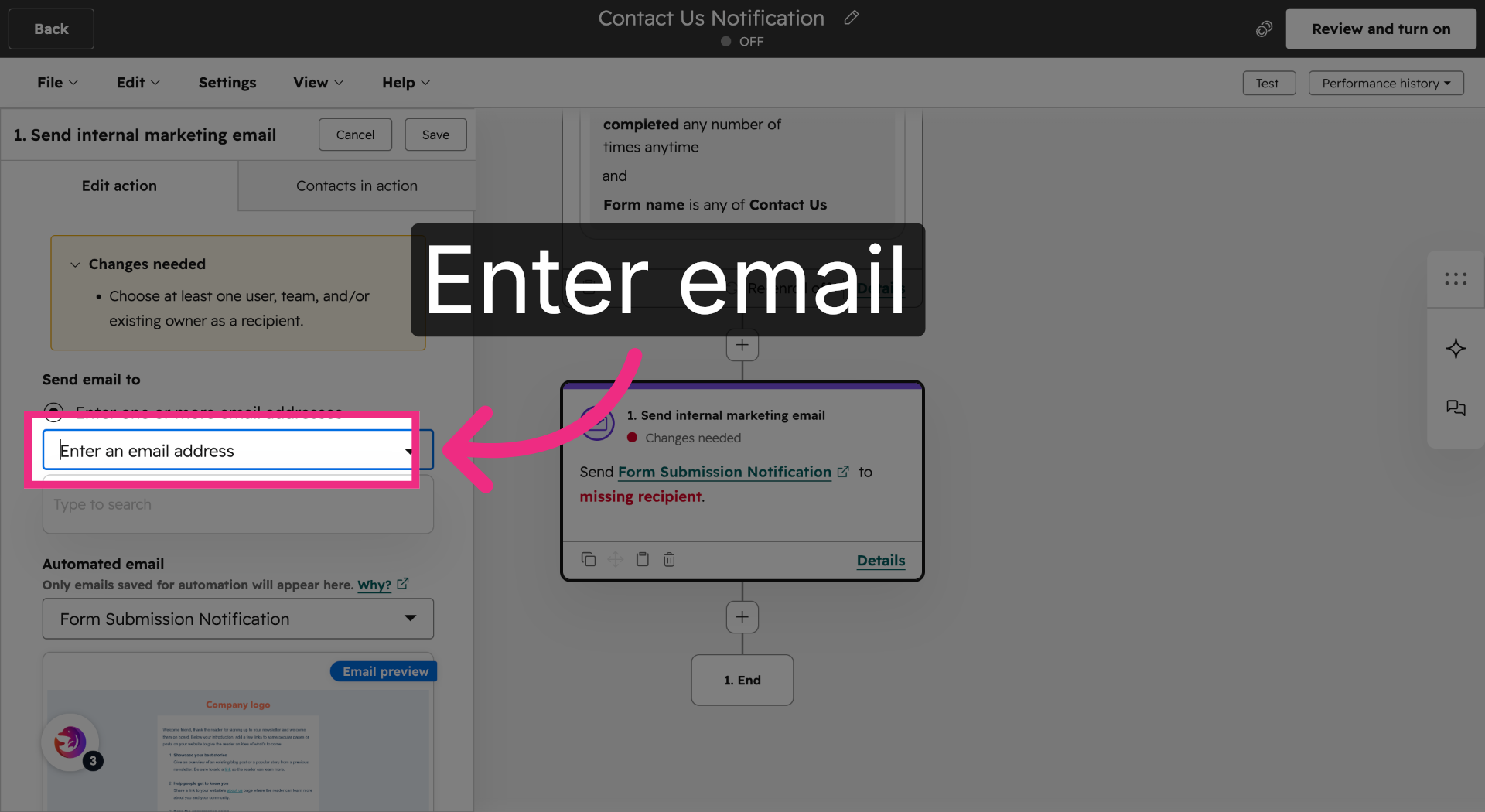
5. Paste Notification Email
Paste the Dash Dolphin notification email address into the Send to field.
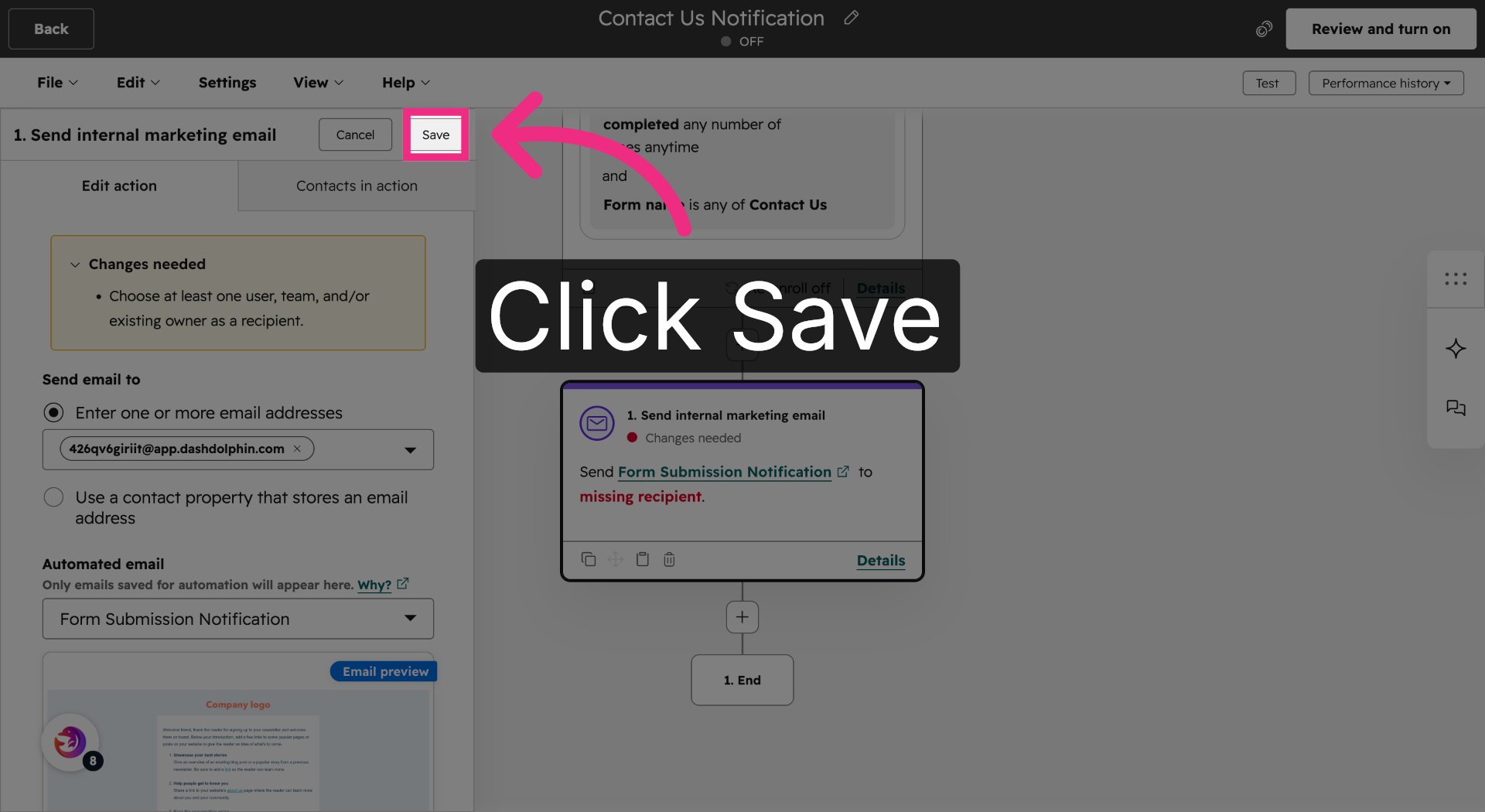
6. Save the Action
Save the action to confirm your notification recipient.
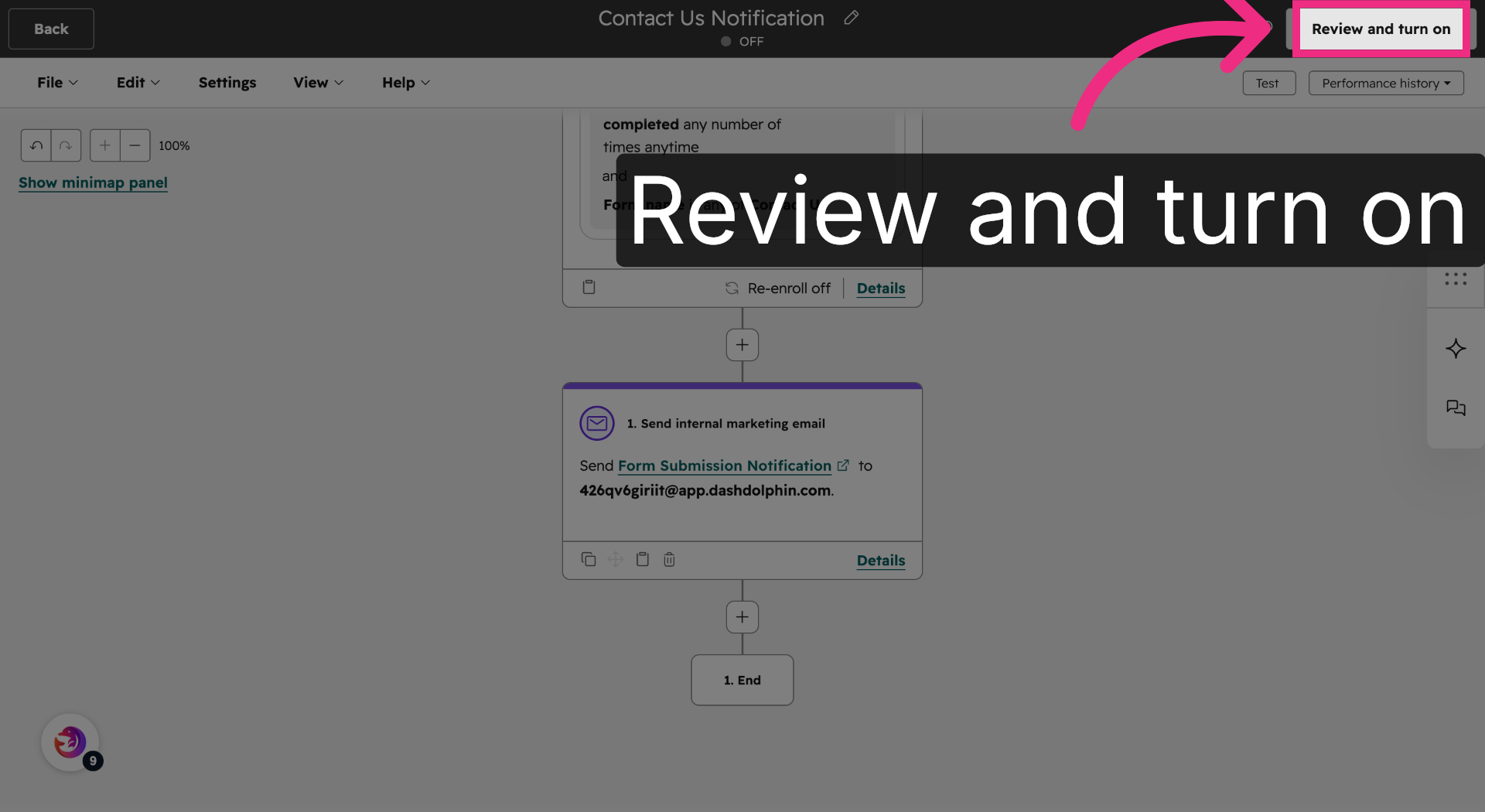
7. Review the Workflow
Open the review panel to finalize the workflow.
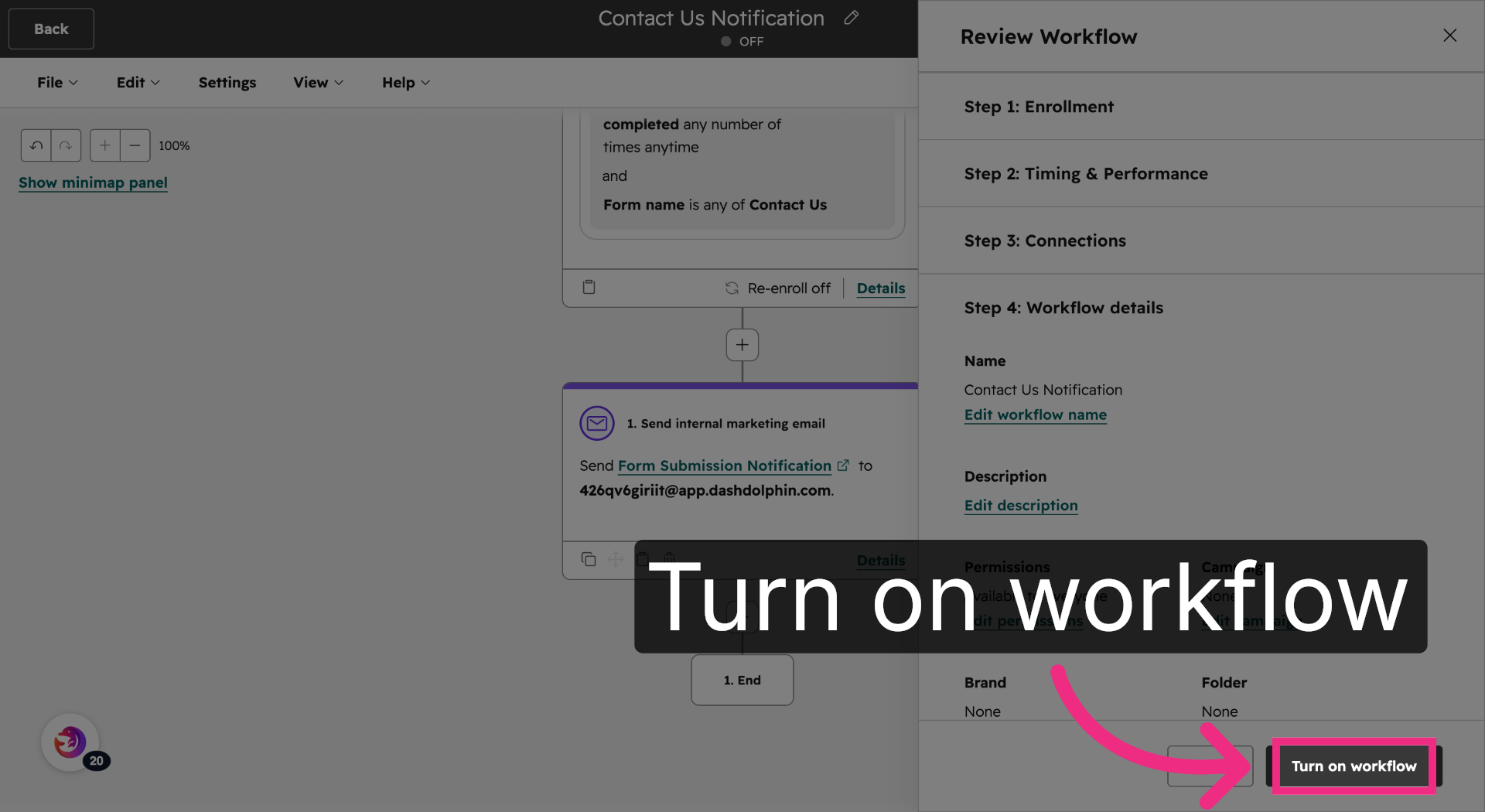
8. Turn on the Workflow
Turn on the workflow to start sending notifications to Dash Dolphin.
You have successfully configured your HubSpot form to send notification emails to Dash Dolphin, enabling instant SMS alerts. Test the setup by submitting a form and verifying the SMS notification delivery.
