1. Introduction
In this guide, you'll connect your Squarespace form to Dash Dolphin so submissions trigger instant SMS alerts.
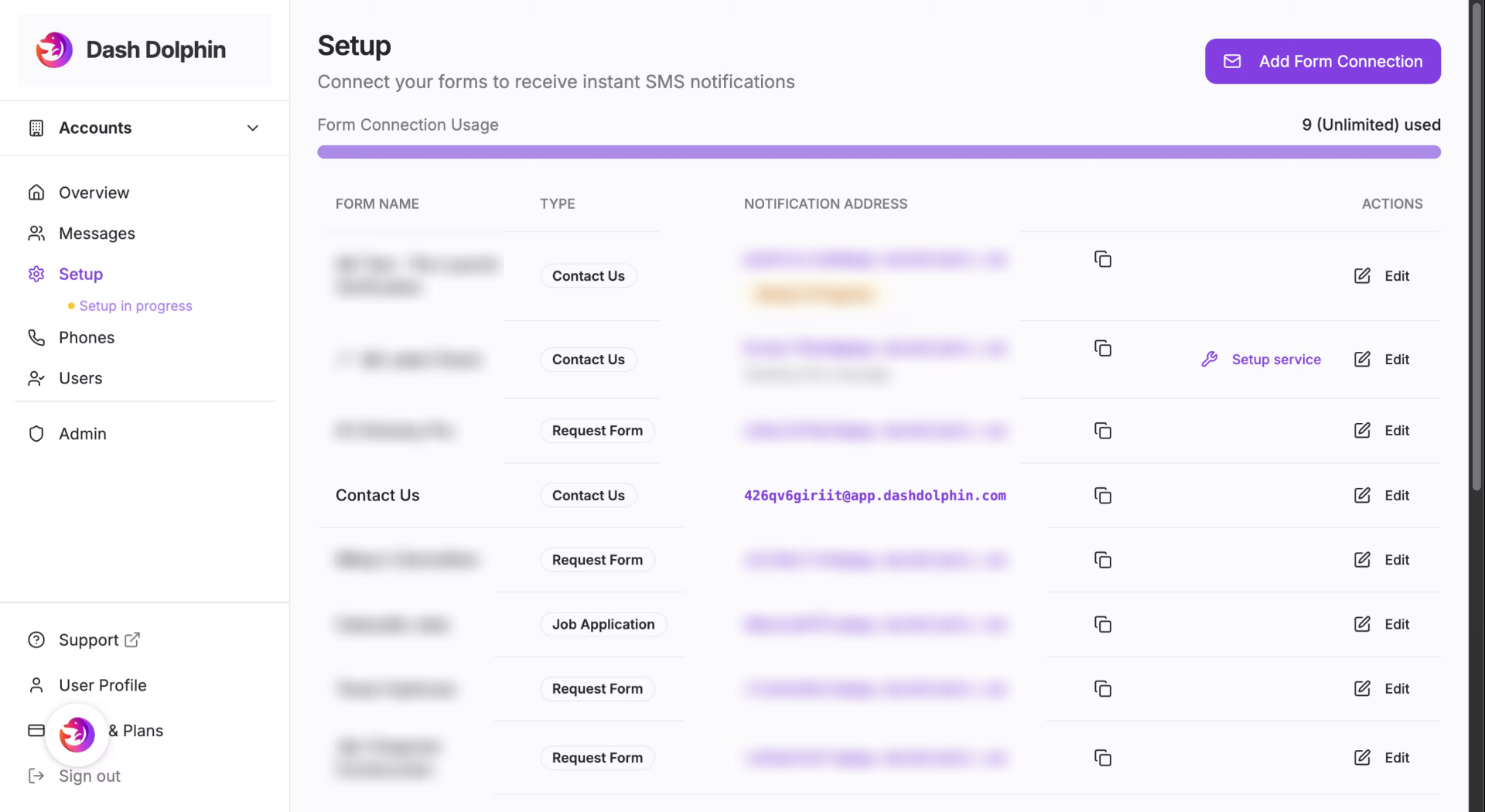
2. Access Dash Dolphin Dashboard
Copy the notification email address from your Dash Dolphin connection.
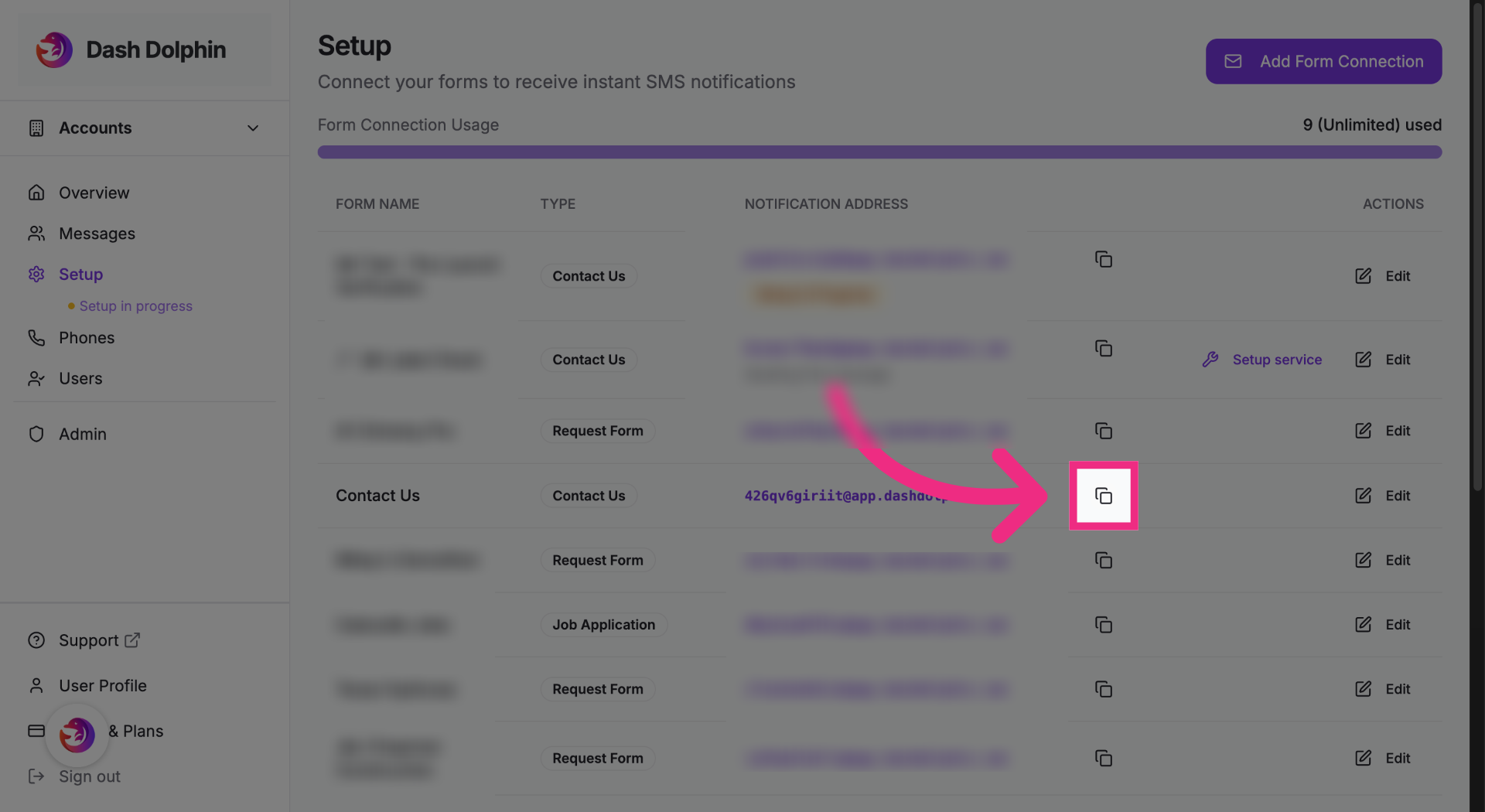
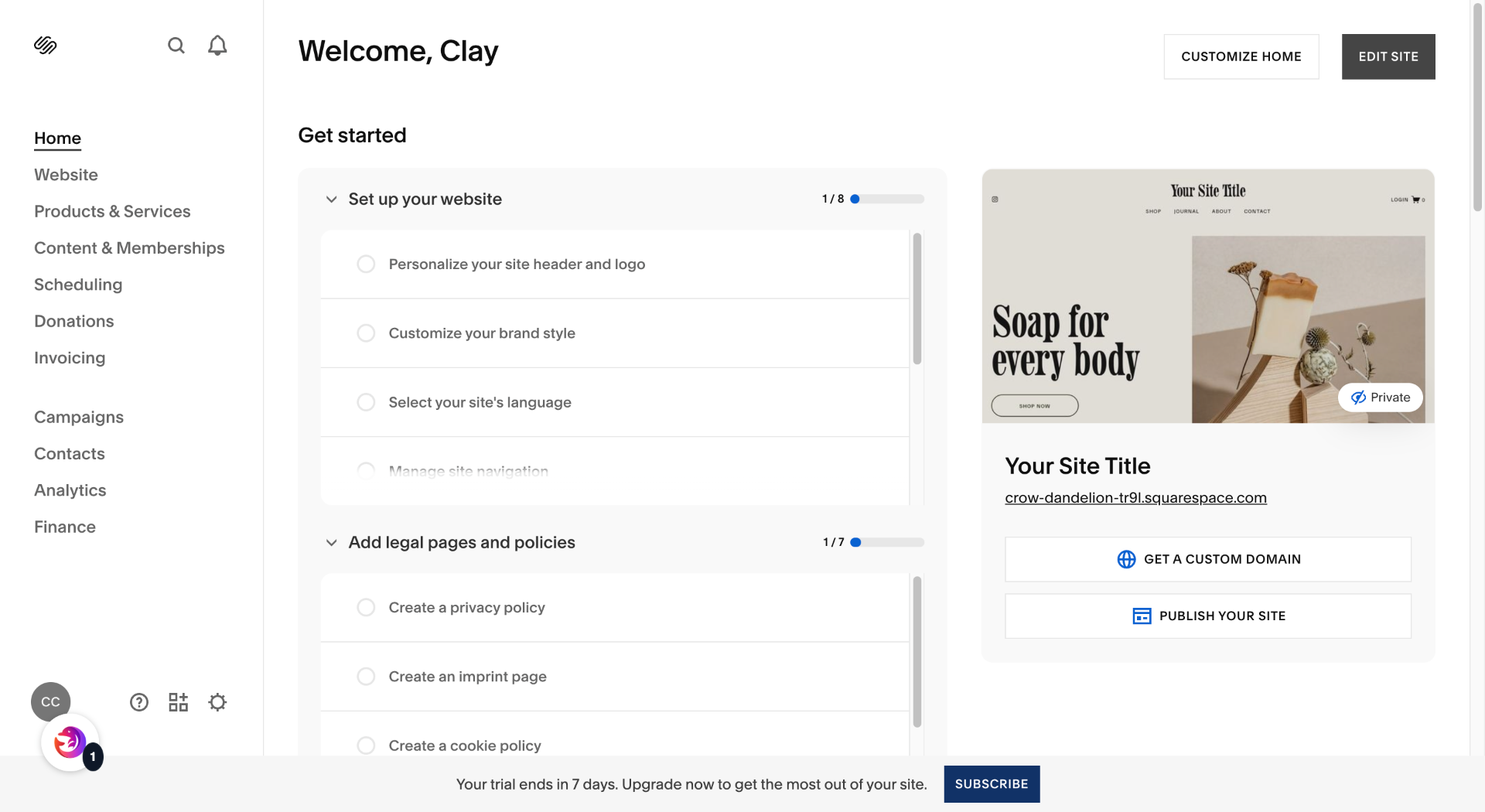
3. Switch To Squarespace Site
Open your Squarespace dashboard.
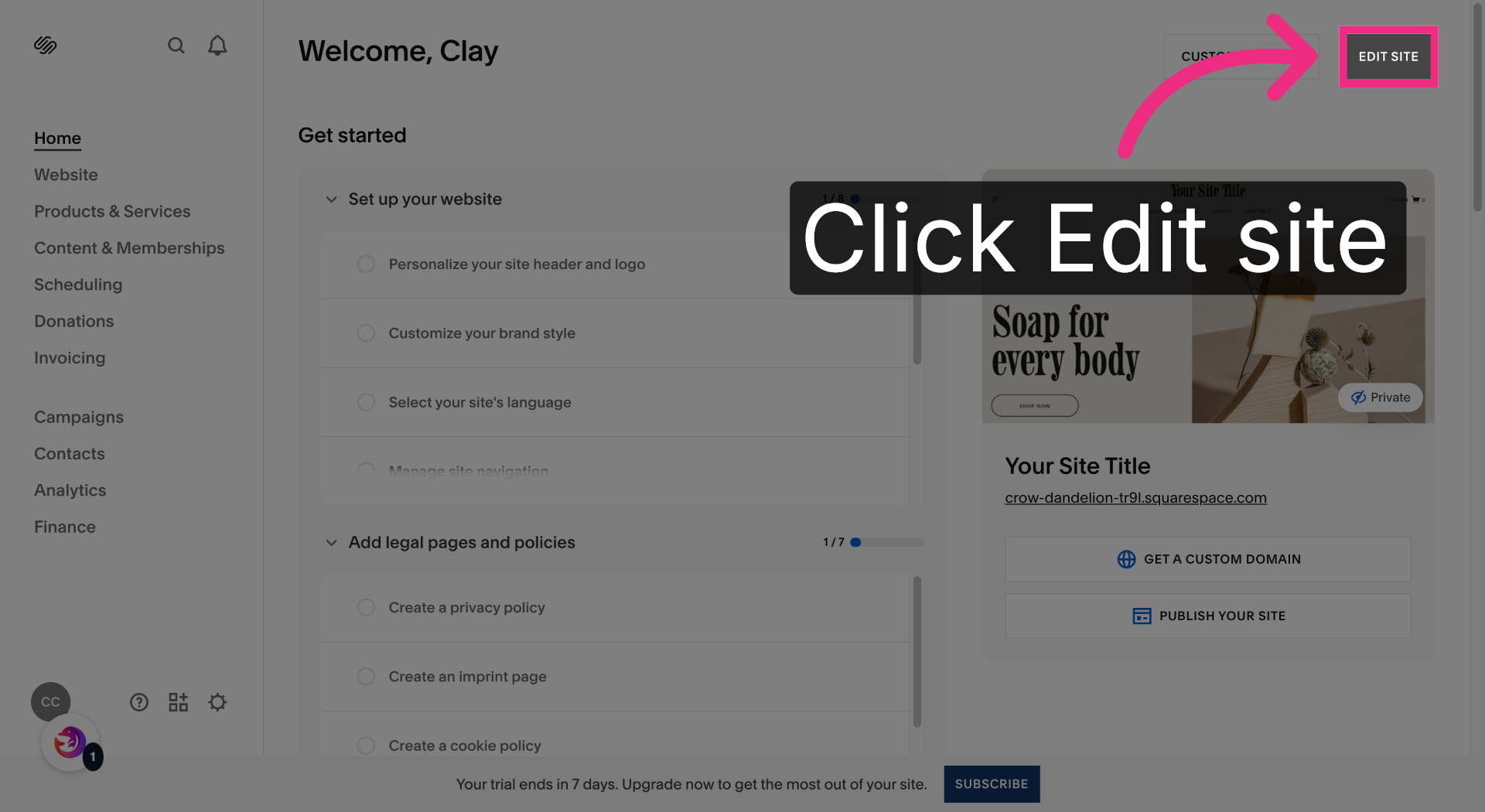
4. Enter Site Editing Mode
Click Edit Site.
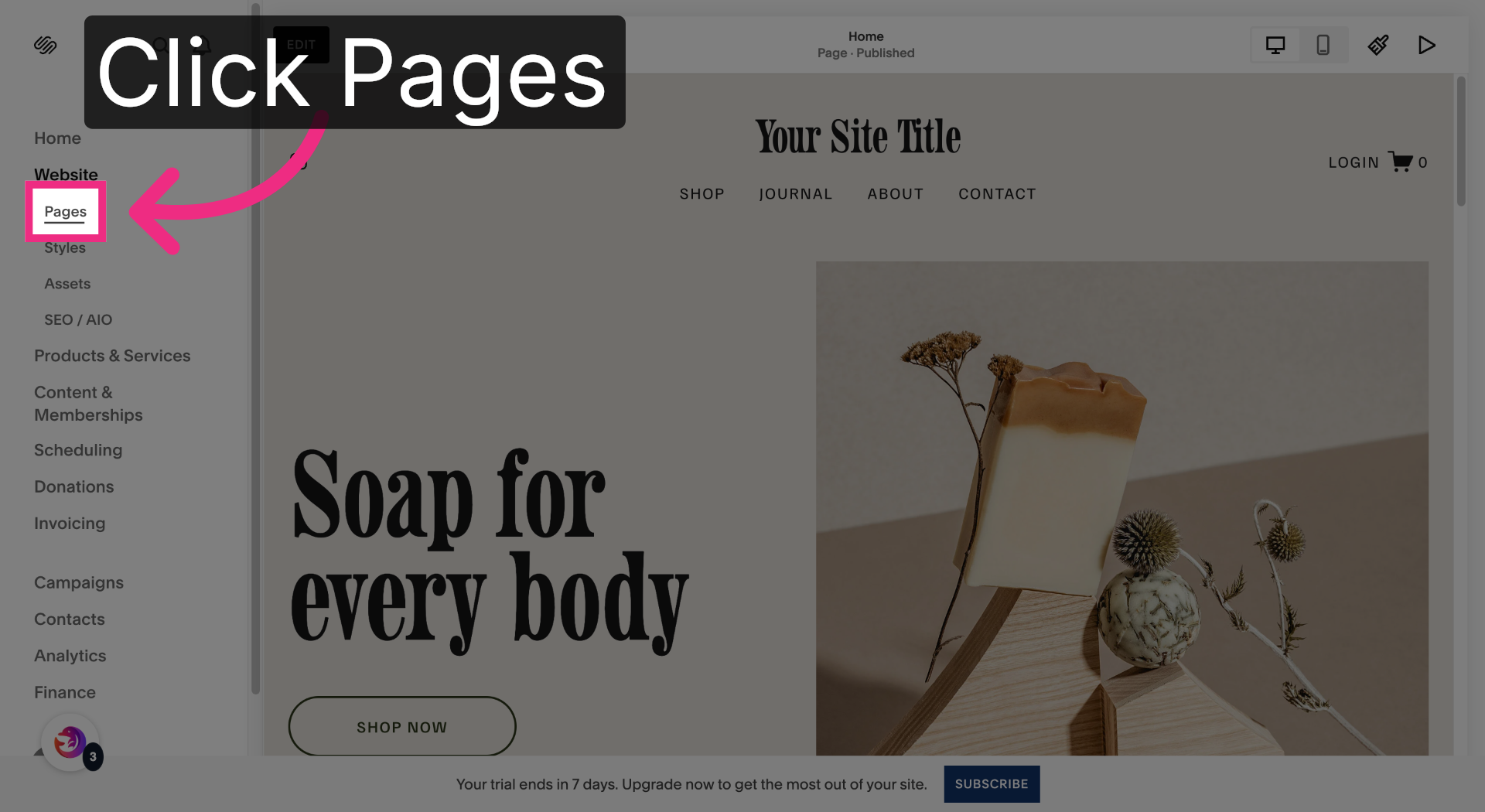
5. Open Pages Section
Open the Pages section.
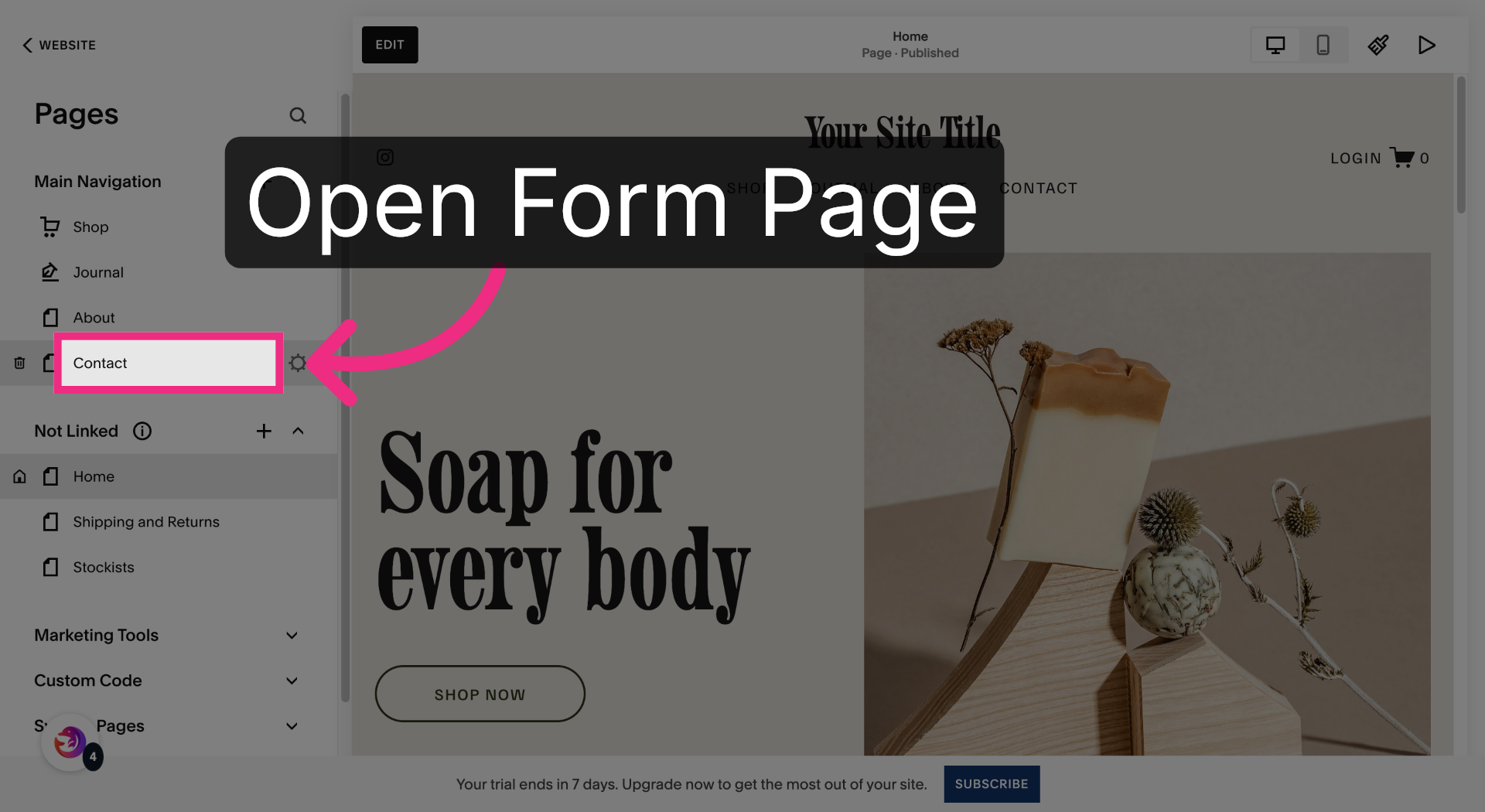
6. Select Contact Page
Open the page that contains your form.
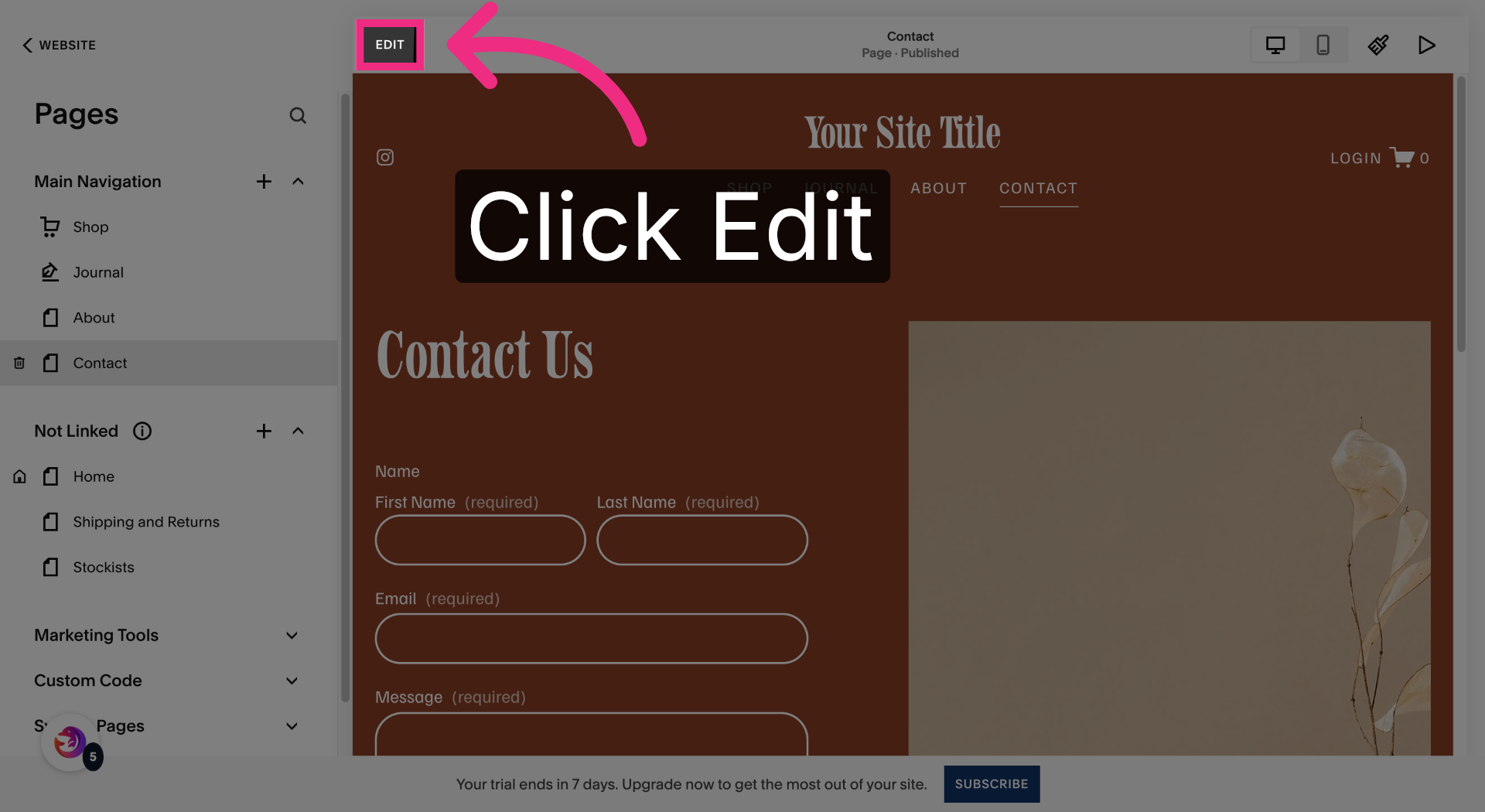
7. Edit Contact Page
Click Edit to enter editing mode.
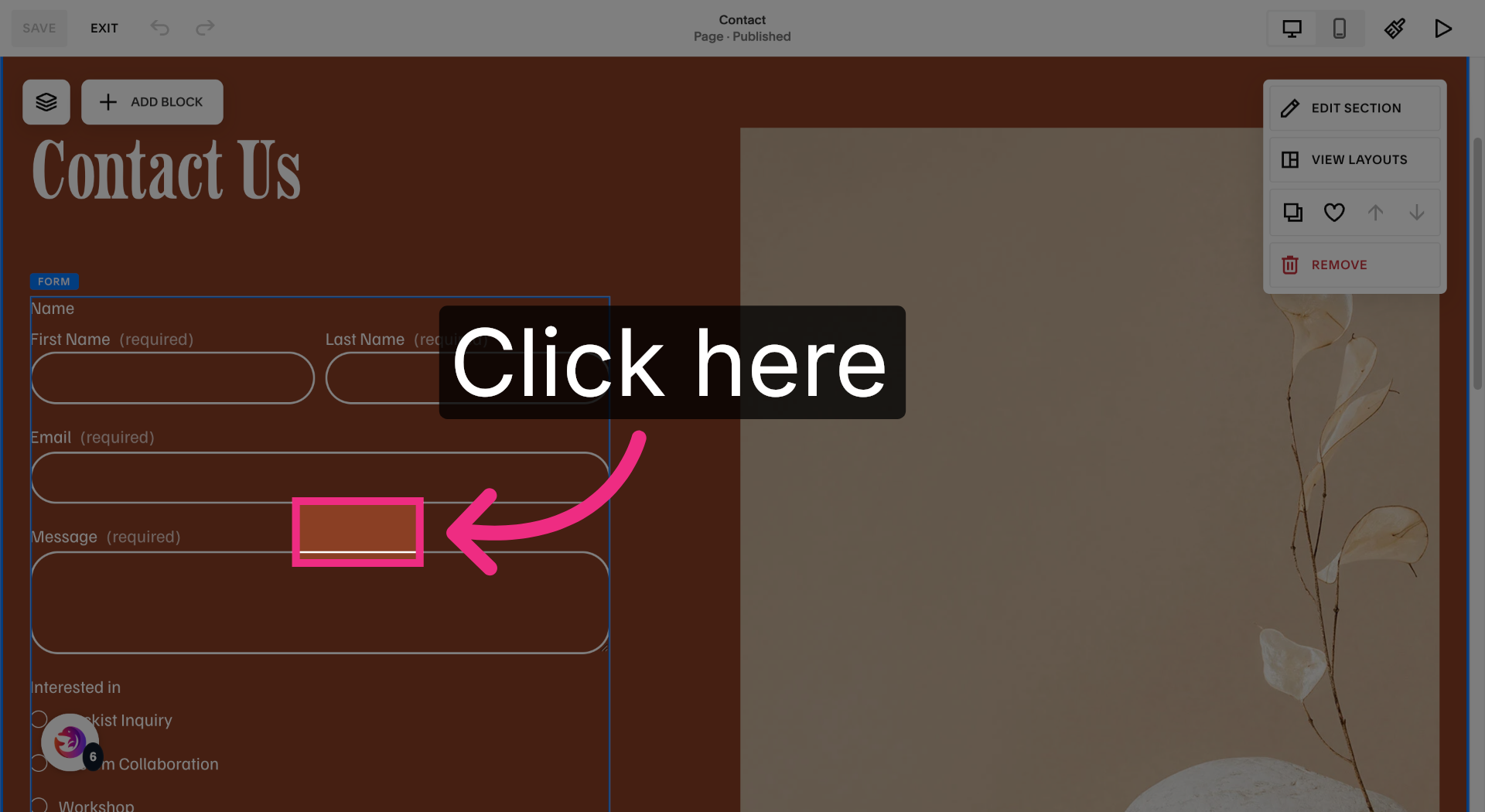
8. Access Contact Settings
Clicks somewhere on the form.
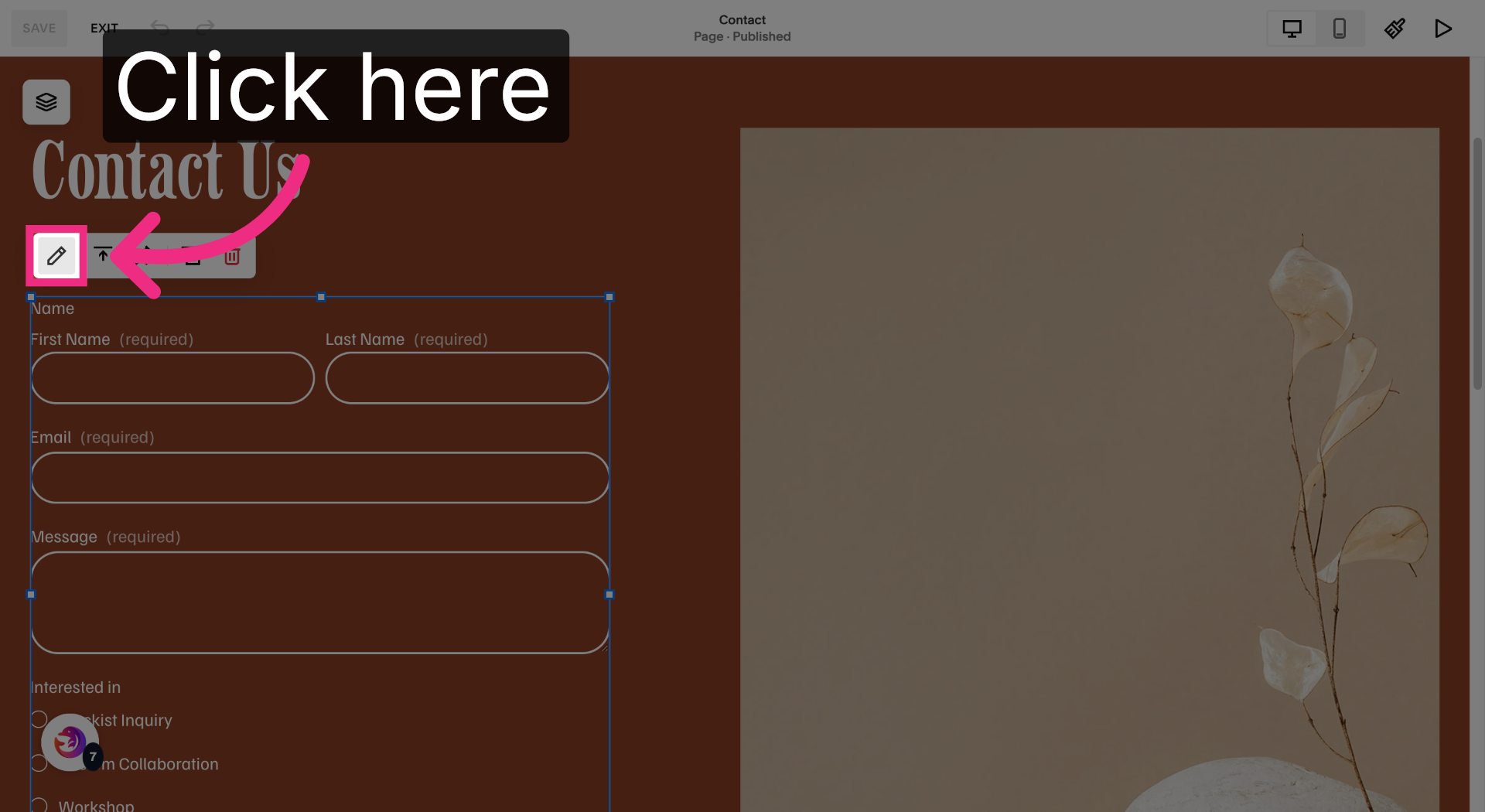
9. Open Notification Options
Click the edit icon.
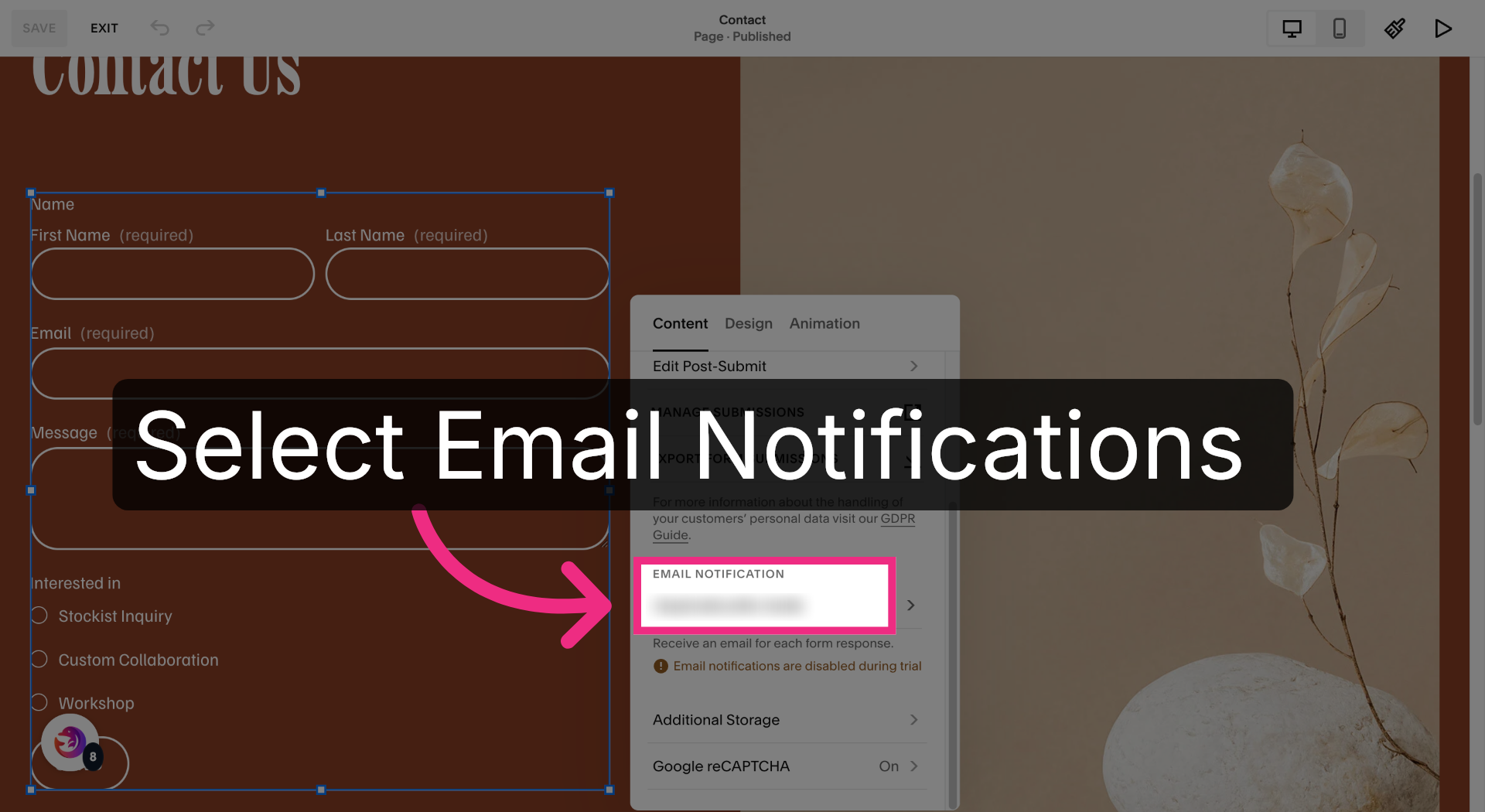
10. Select Email Address
Find Email Notifications
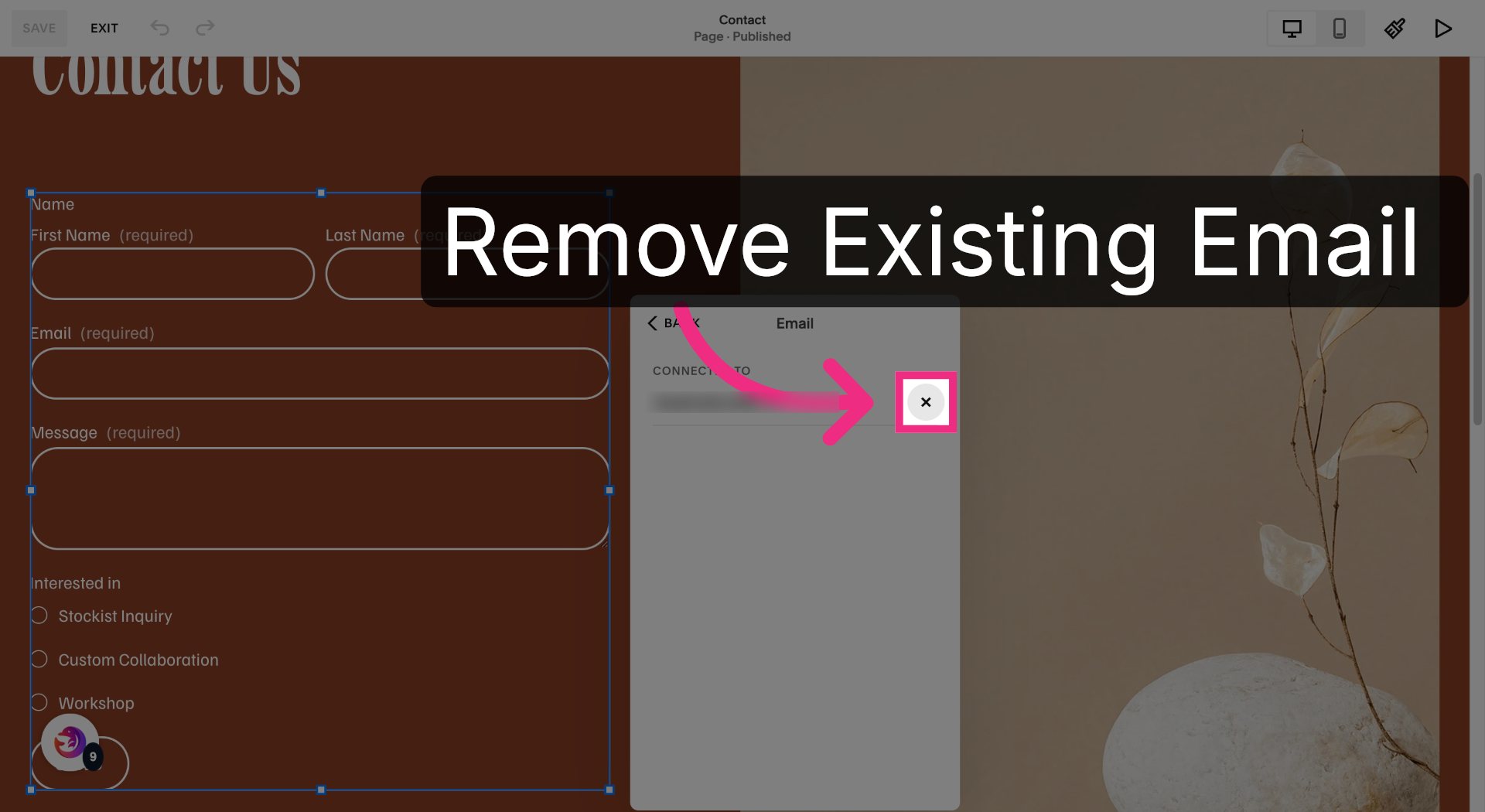
11. Open Email Settings
Remove the existing email
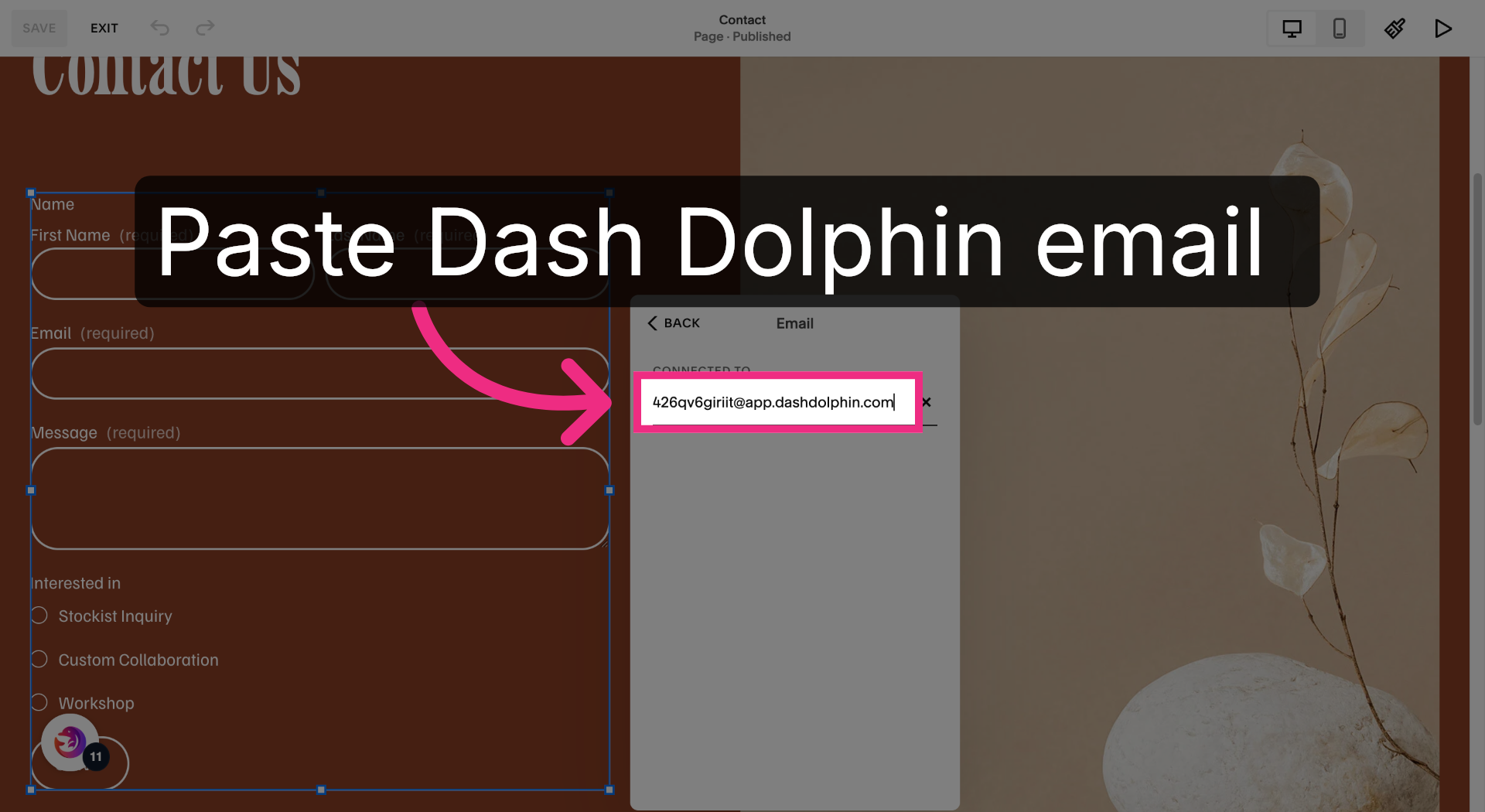
12. Enter Dash Dolphin Email
Fill your Dash Dolphin email.
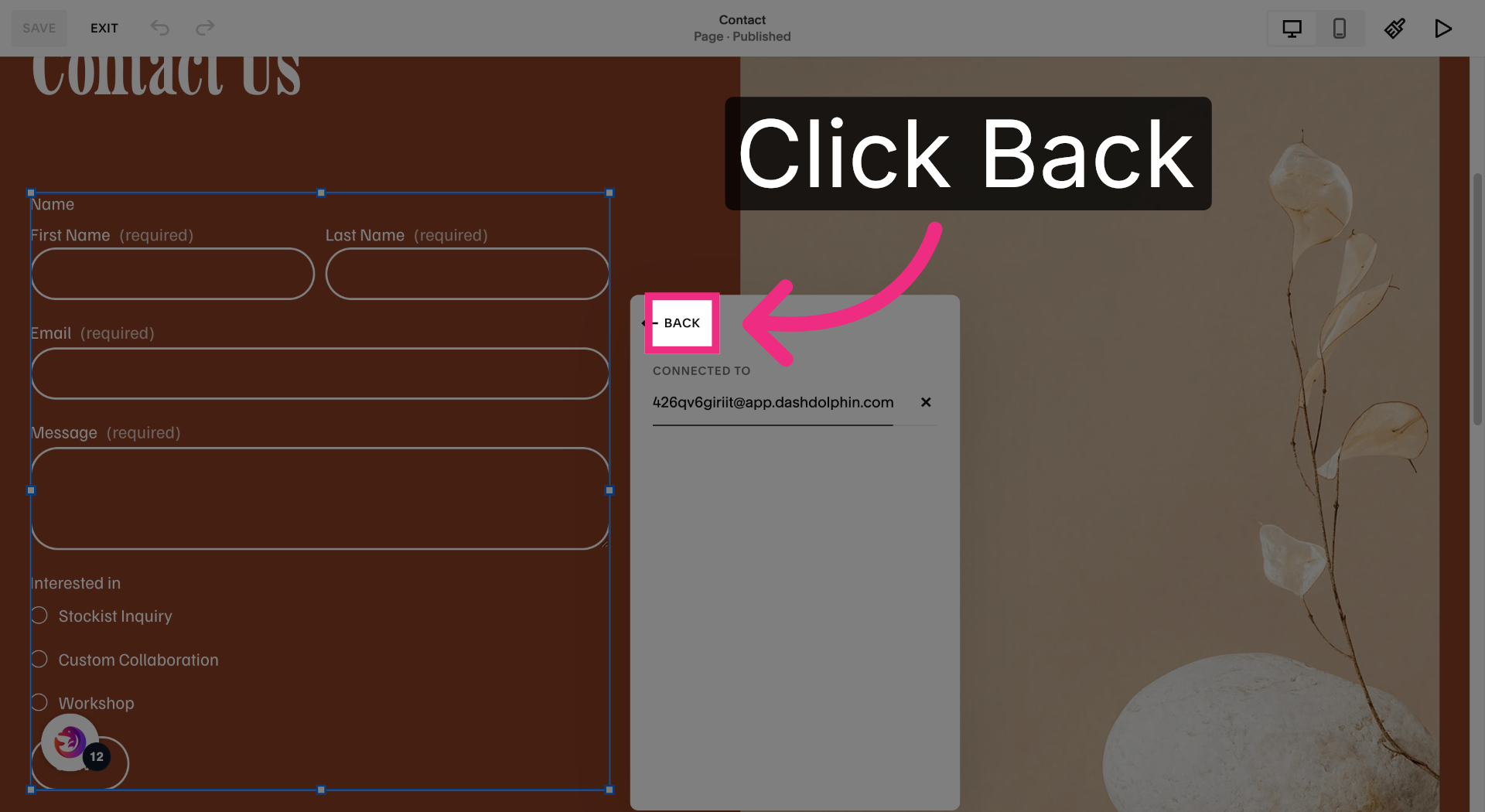
13. Return To Contact Page
Click back.
14. Review Contact Page Layout
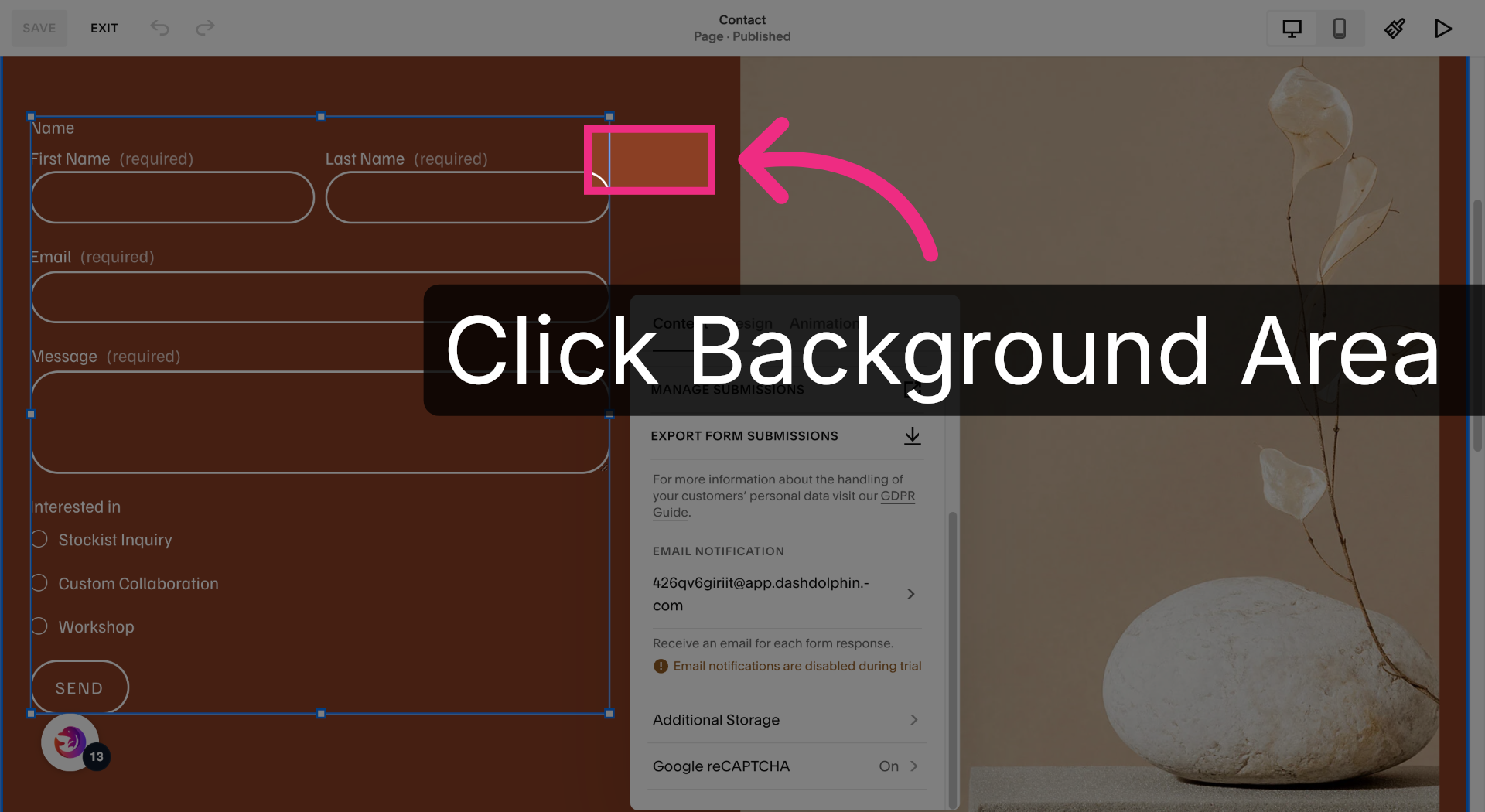
Exit the editor by clicking the background. Squarespace auto-saves form settings.
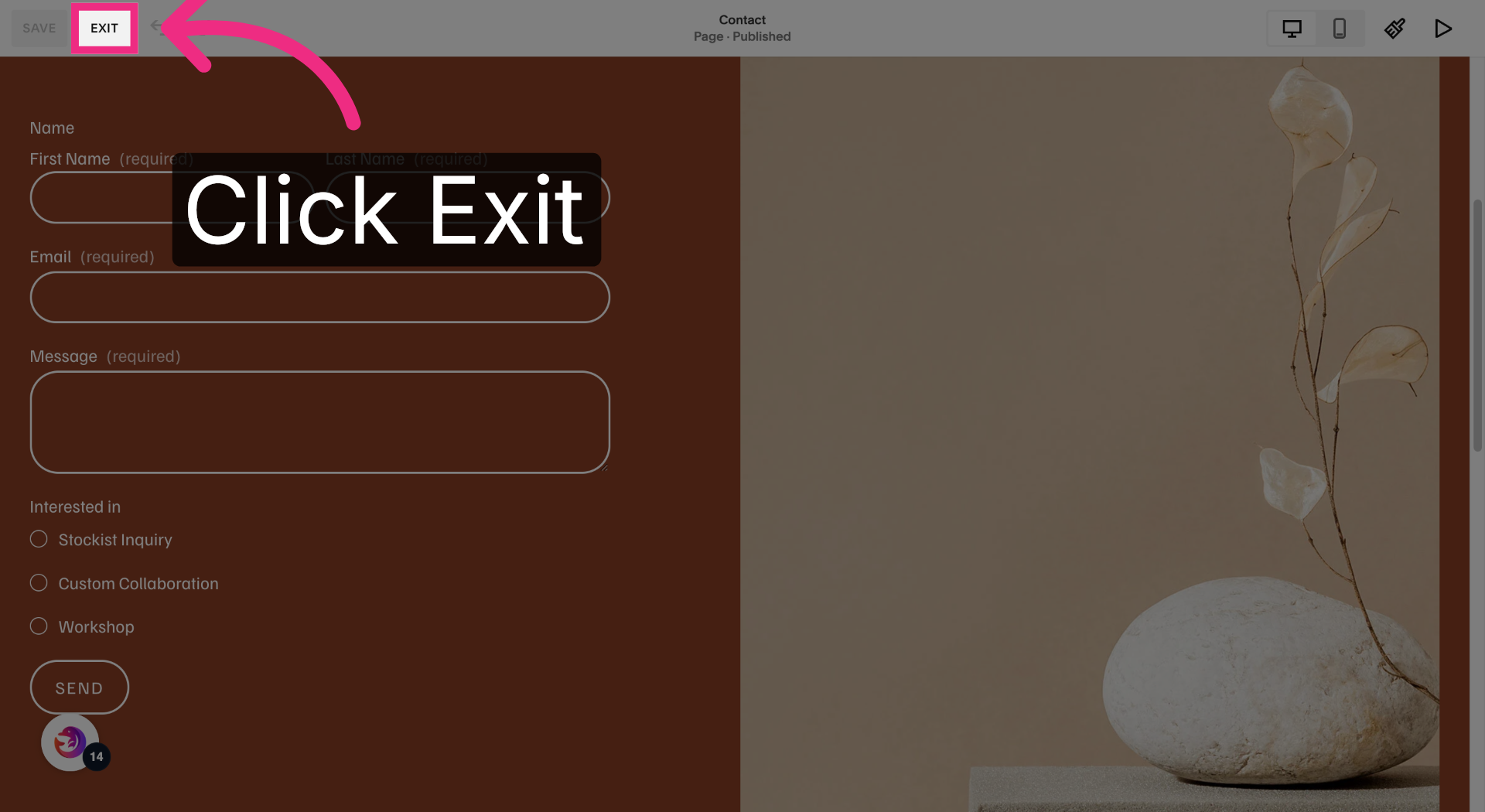
15. Exit Site Editor
Exit the editor.
You have successfully configured your Squarespace form to send notification emails to Dash Dolphin, enabling instant SMS alerts. Test the setup by submitting a form and verifying the SMS notification delivery.
