Once you've created your connection and received your notification email address, you can configure your Wix form to forward submissions to Dash Dolphin.
1. Introduction
In this guide, you'll connect your Wix form to Dash Dolphin so submissions trigger instant SMS alerts.
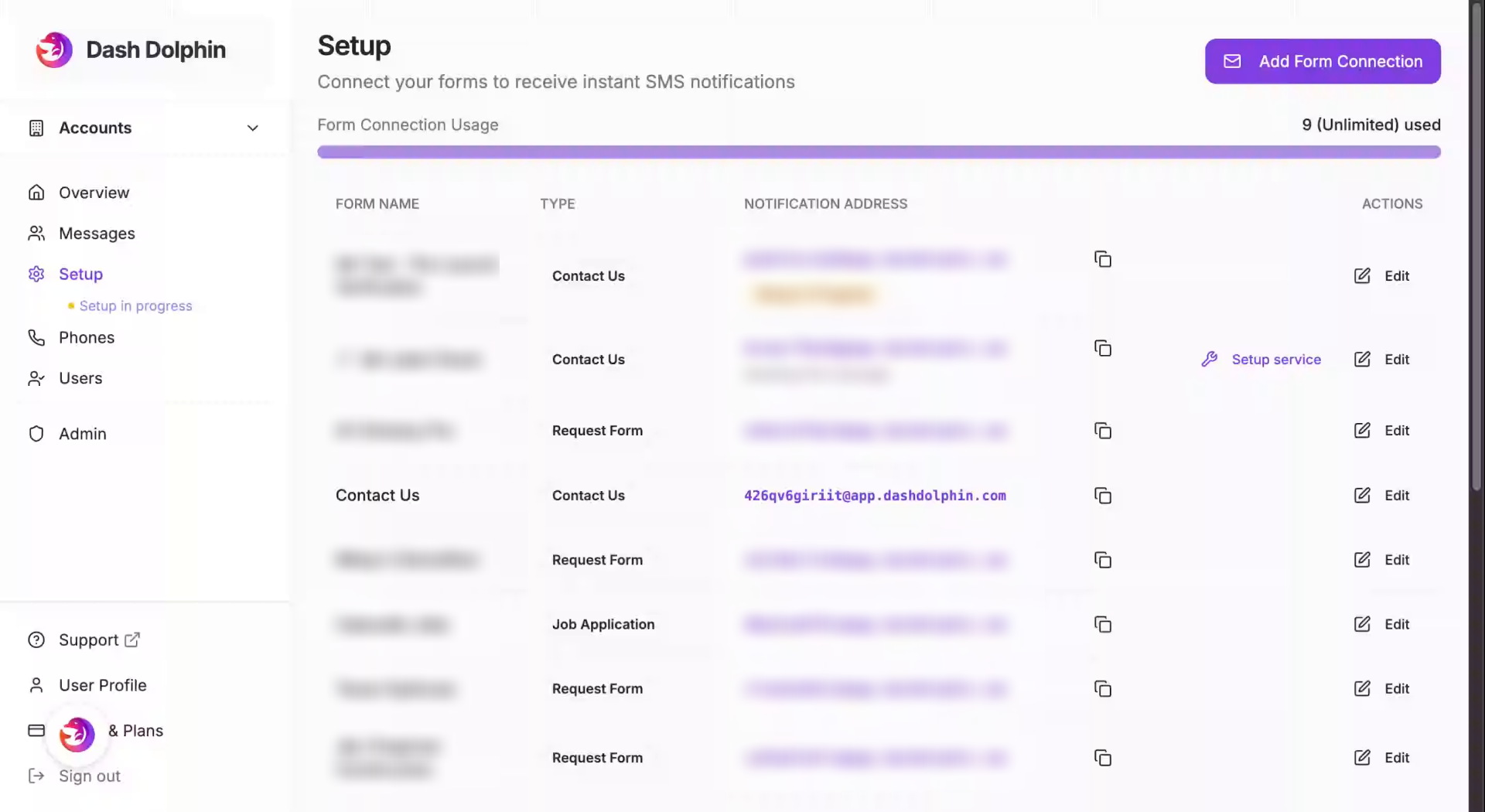
2. Access Dash Dolphin Alerts
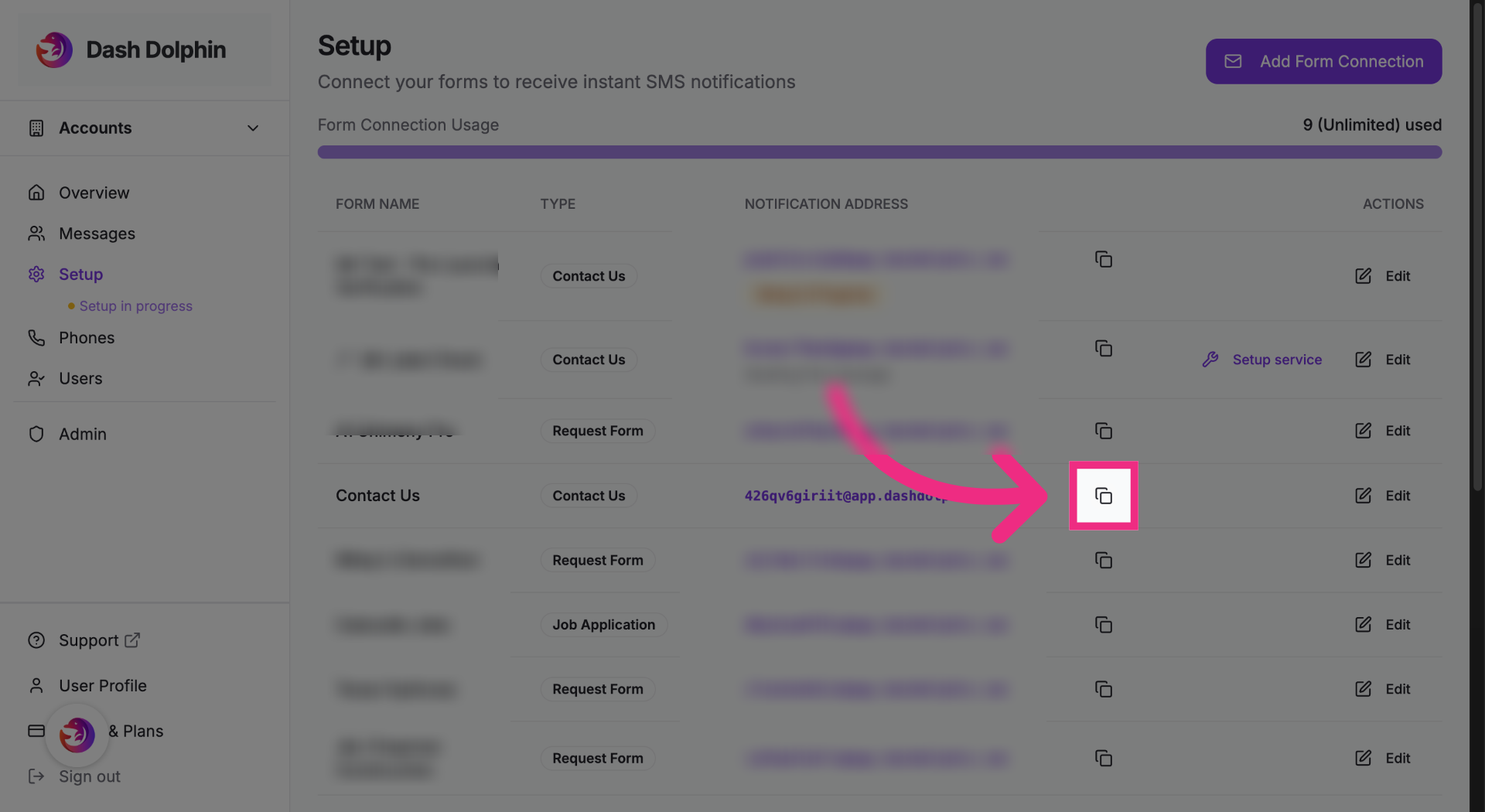
Copy the notification email address from your Dash Dolphin connection.
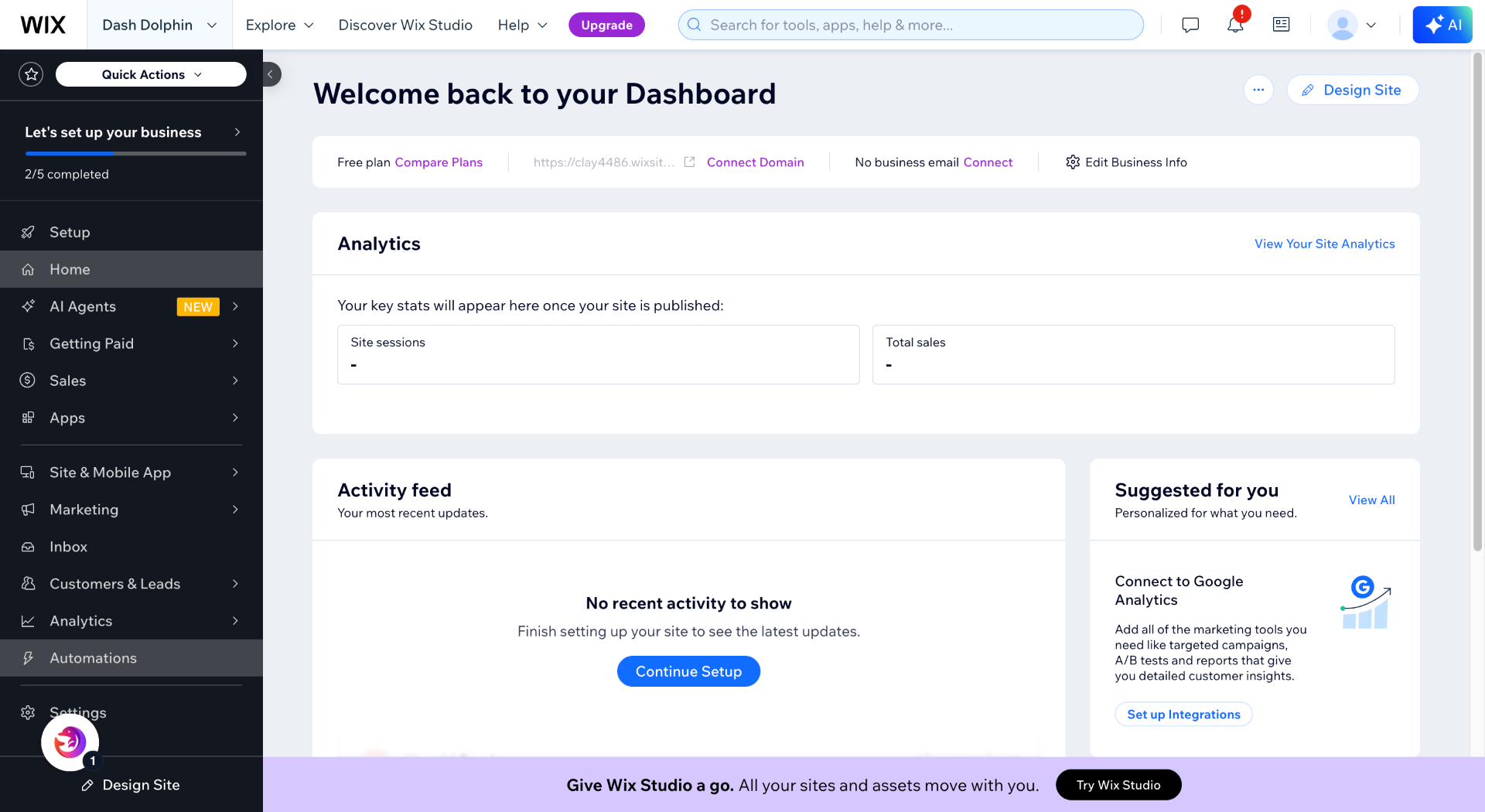
3. Switch To Wix Dashboard
Open your Wix dashboard.
4. Open Automations Section
Open the automations section.

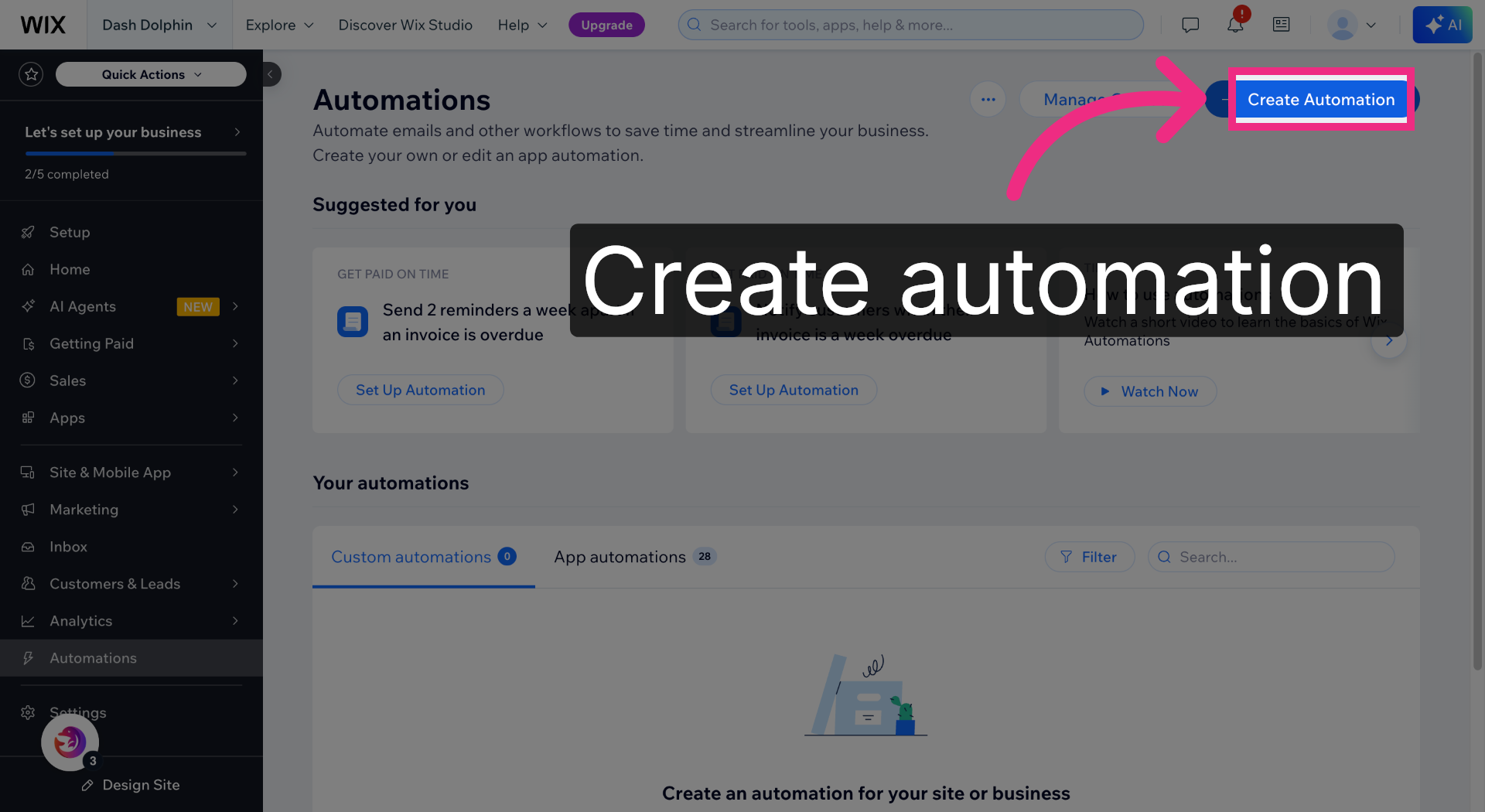
5. Initiate New Automation
Click Create Automation.
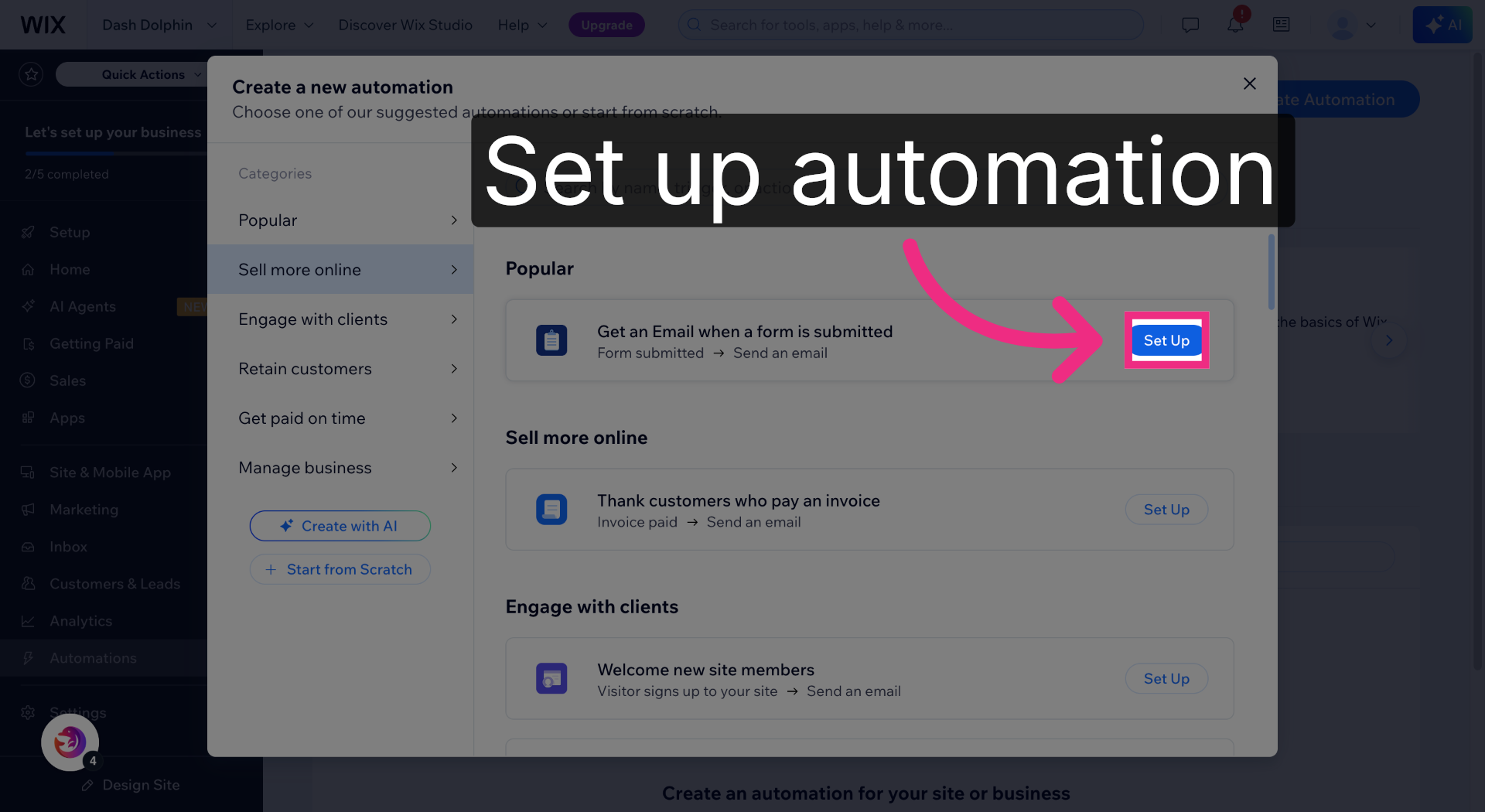
6. Begin Automation Setup
Choose set up on the 'Get an Email when a form is submitted' template.
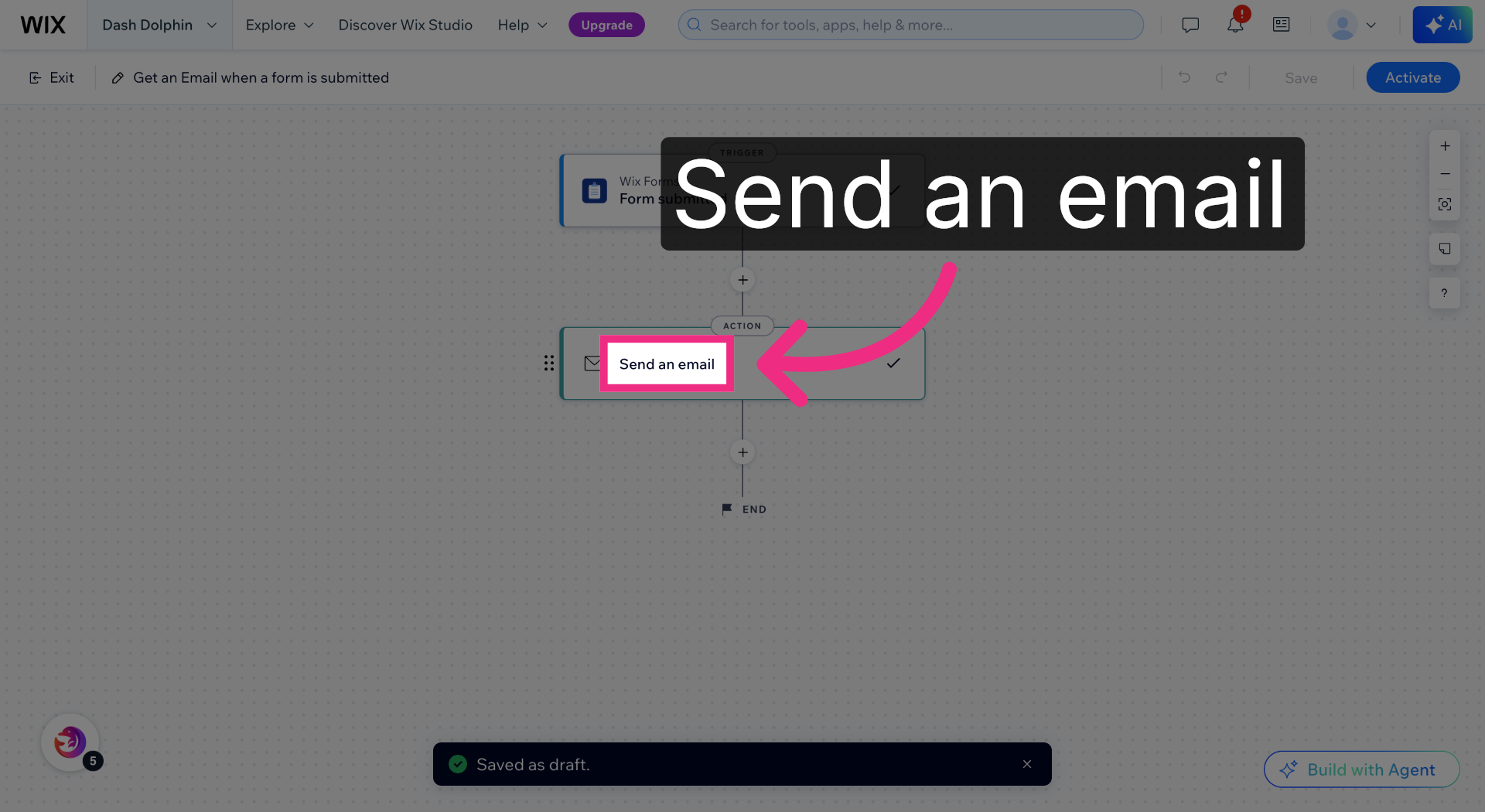
7. Choose Email Action
Open the send an email action.
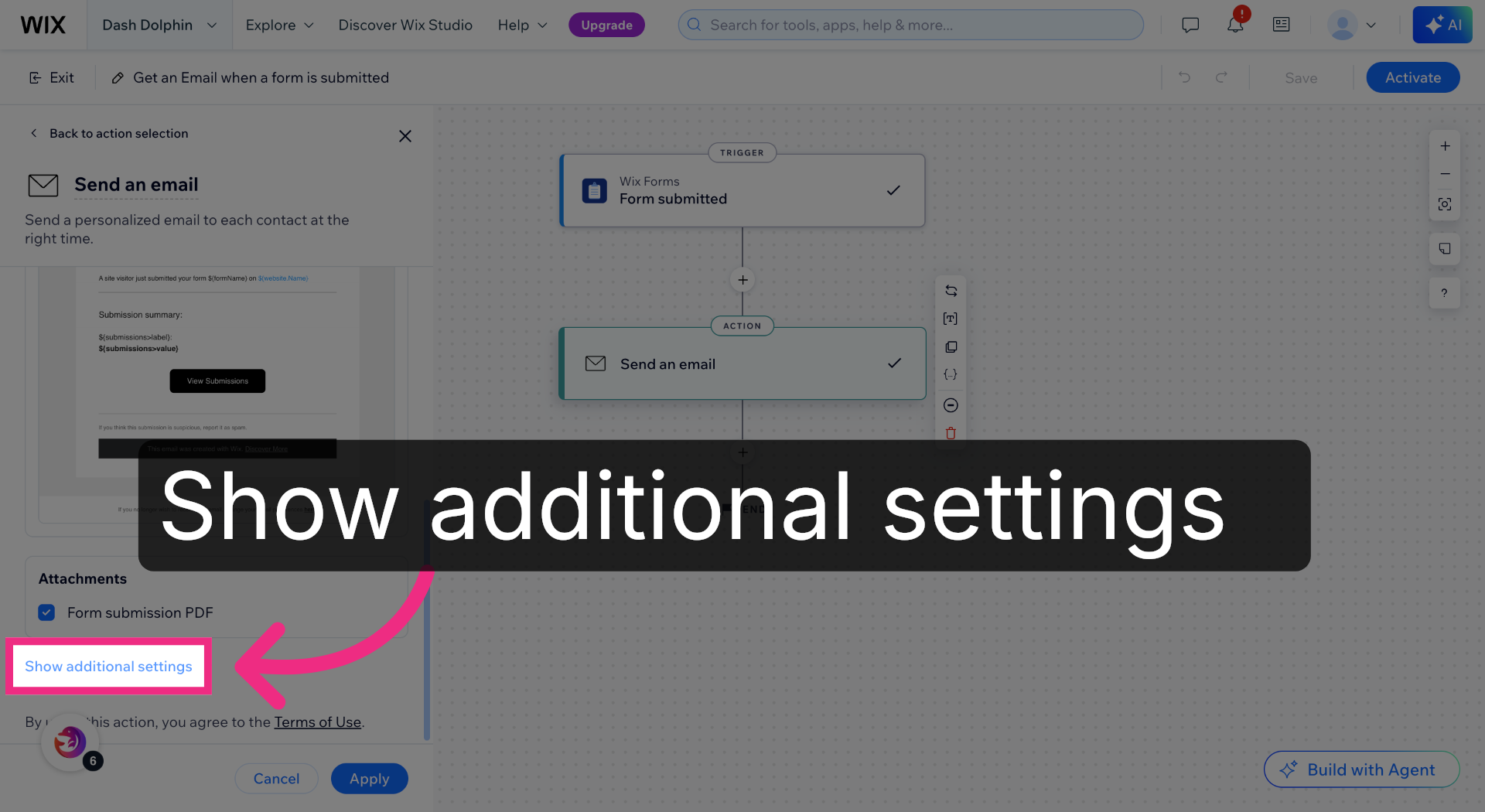
8. Reveal Additional Settings
Show additional settings.
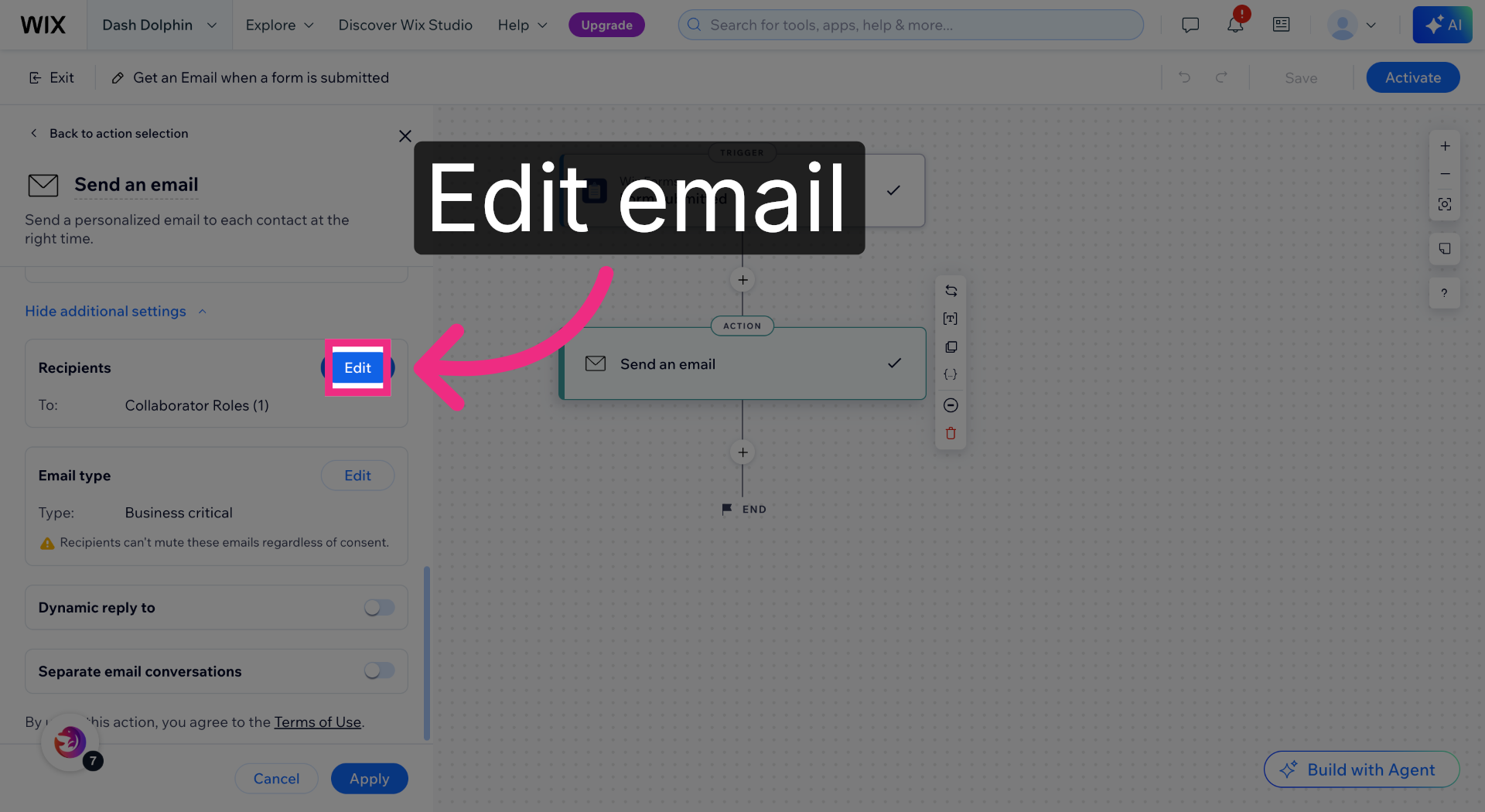
9. Edit Email Content
Open the Recipients picker.
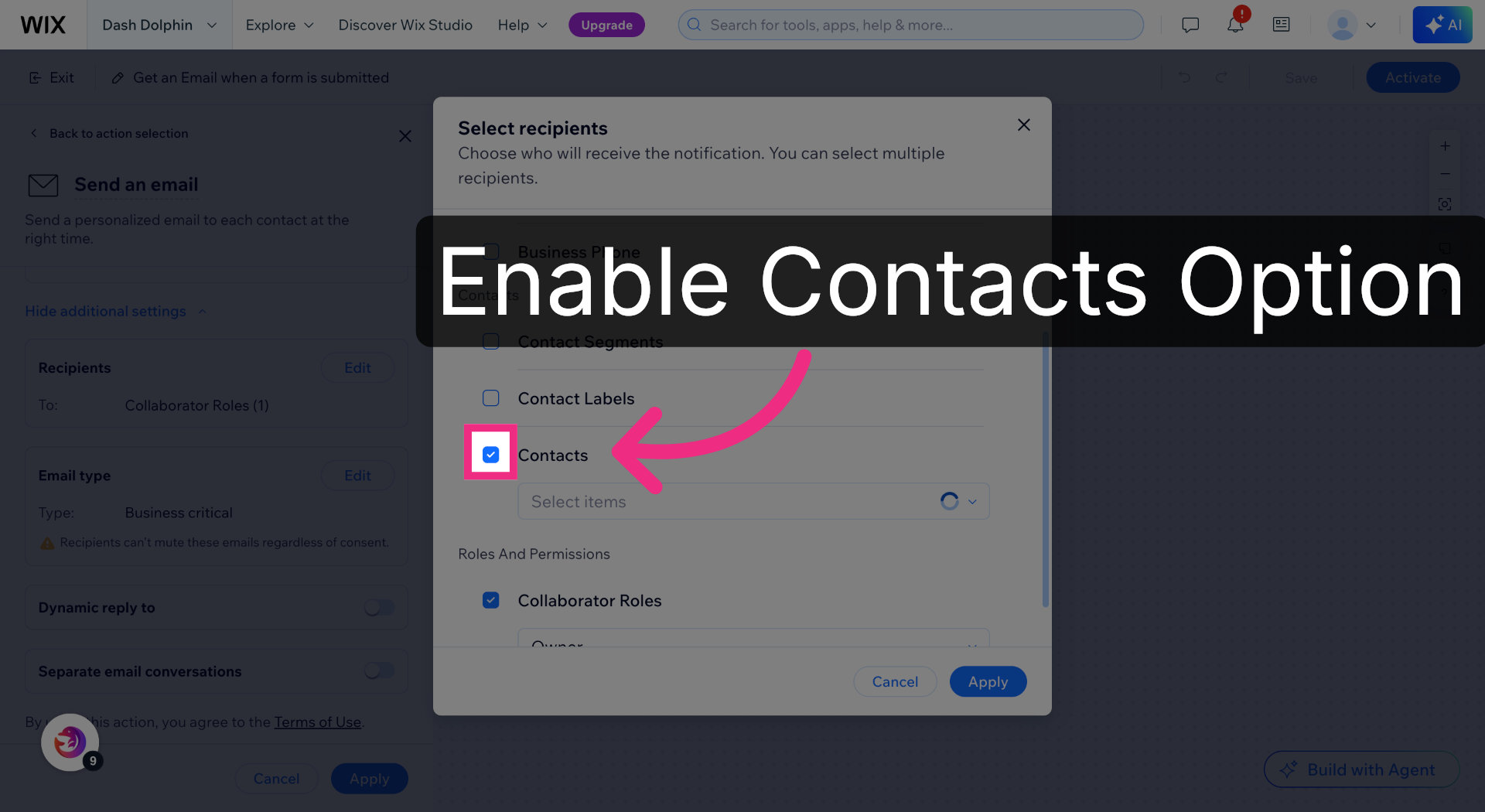
10. Enable Email Option
Check Contacts to add a contact recipient.
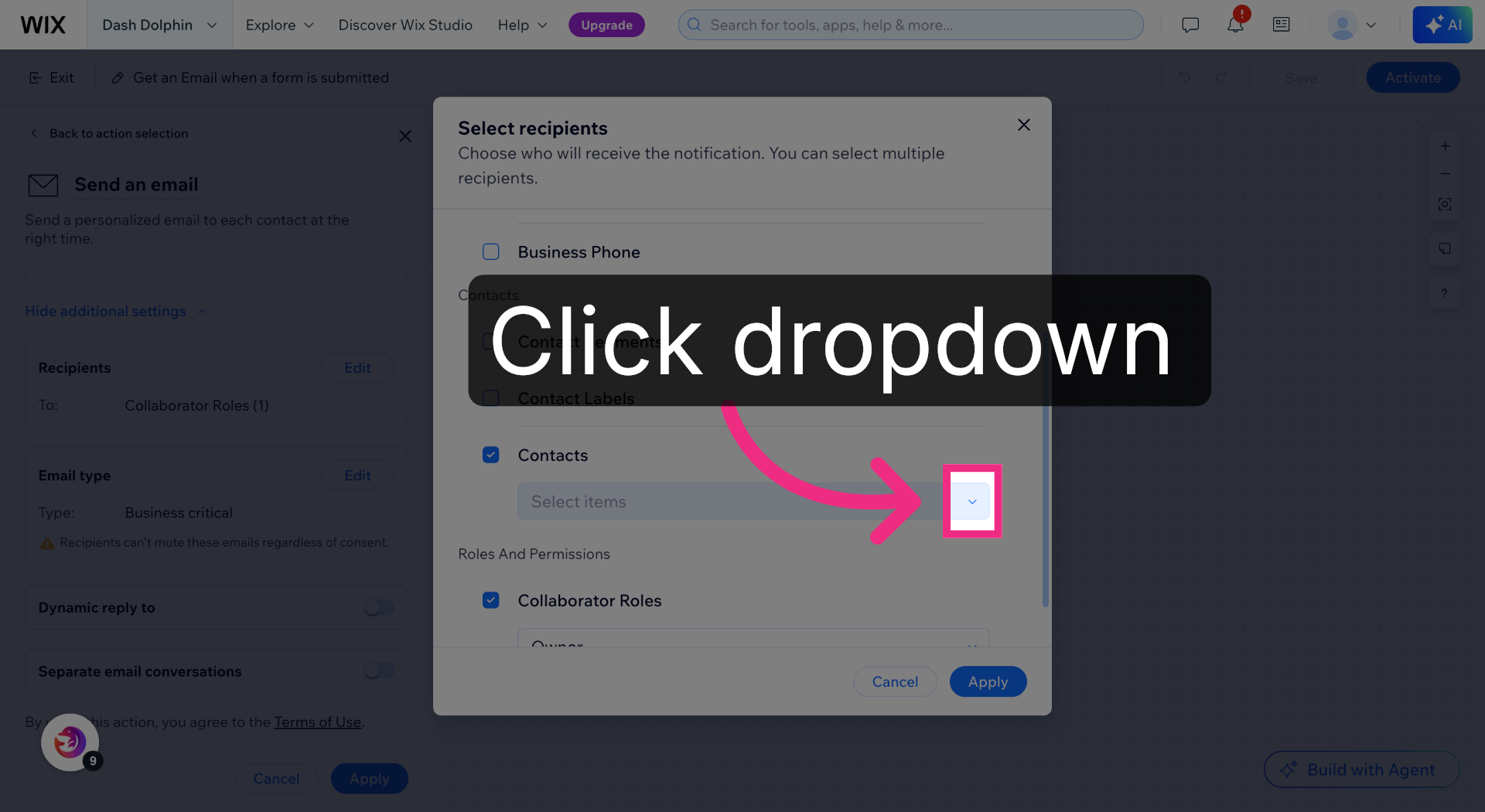
11. Open Additional Settings
Open the Select items dropdown.
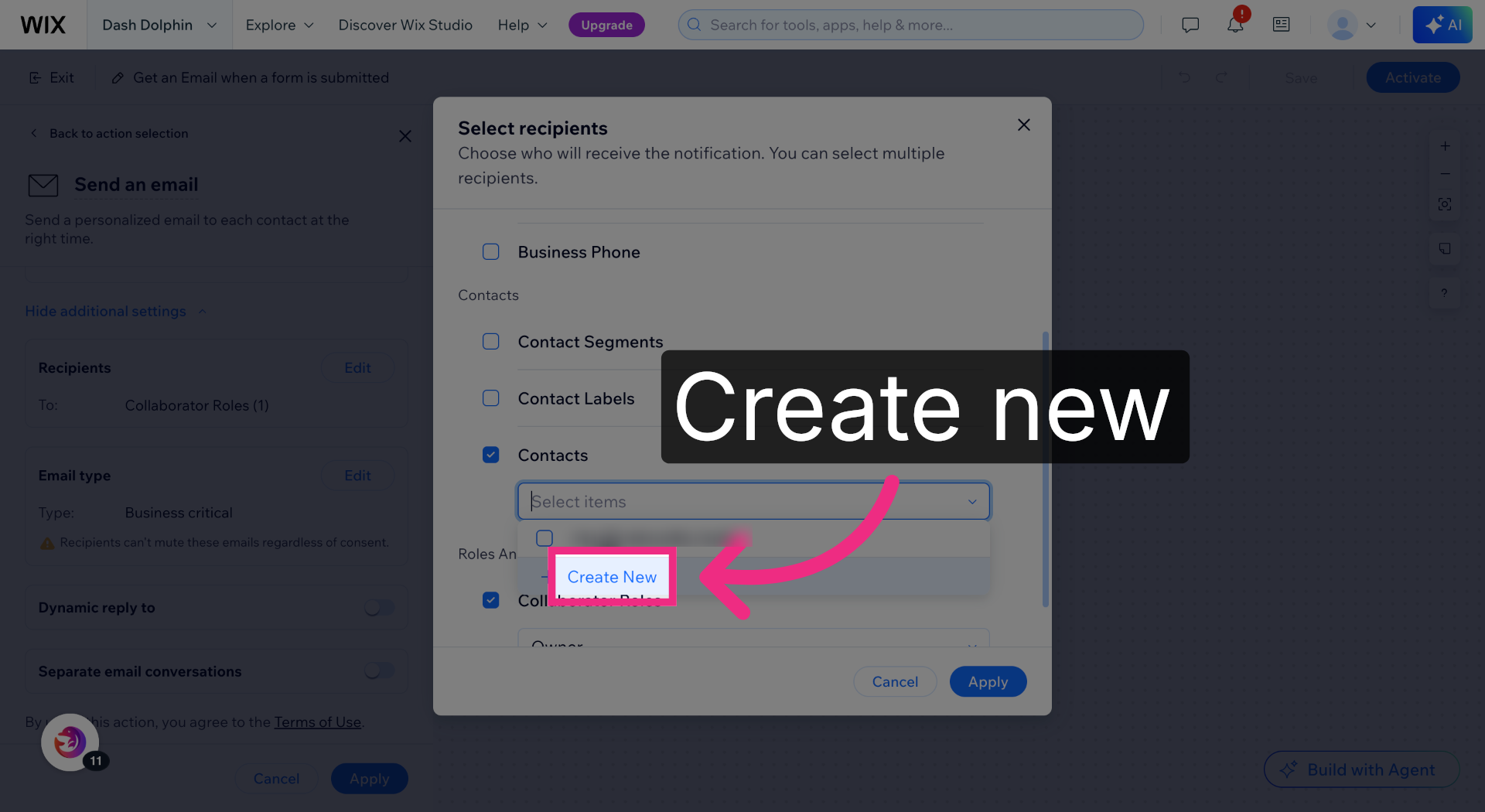
12. Create New Automation
Add a new contact recipient.
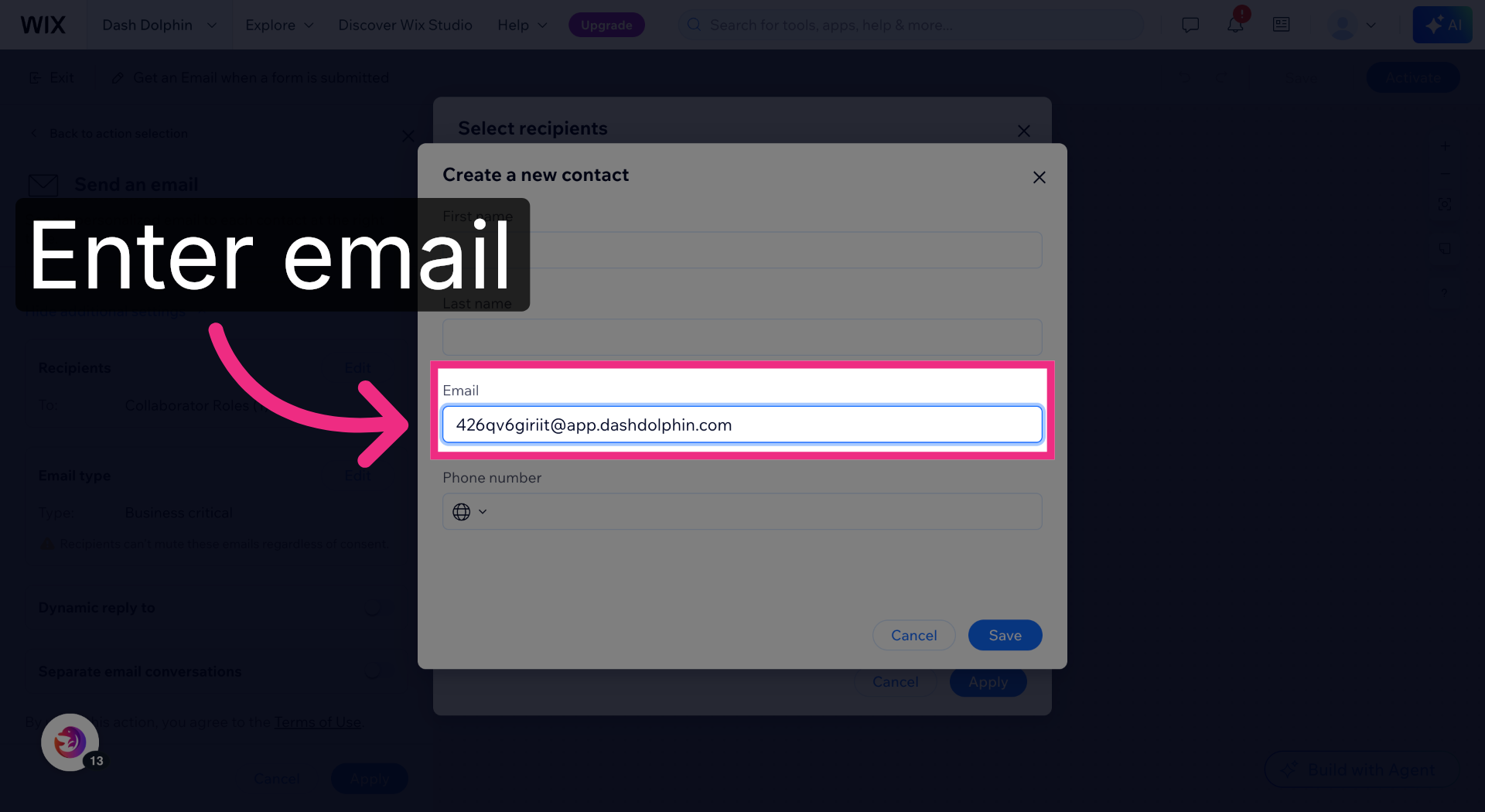
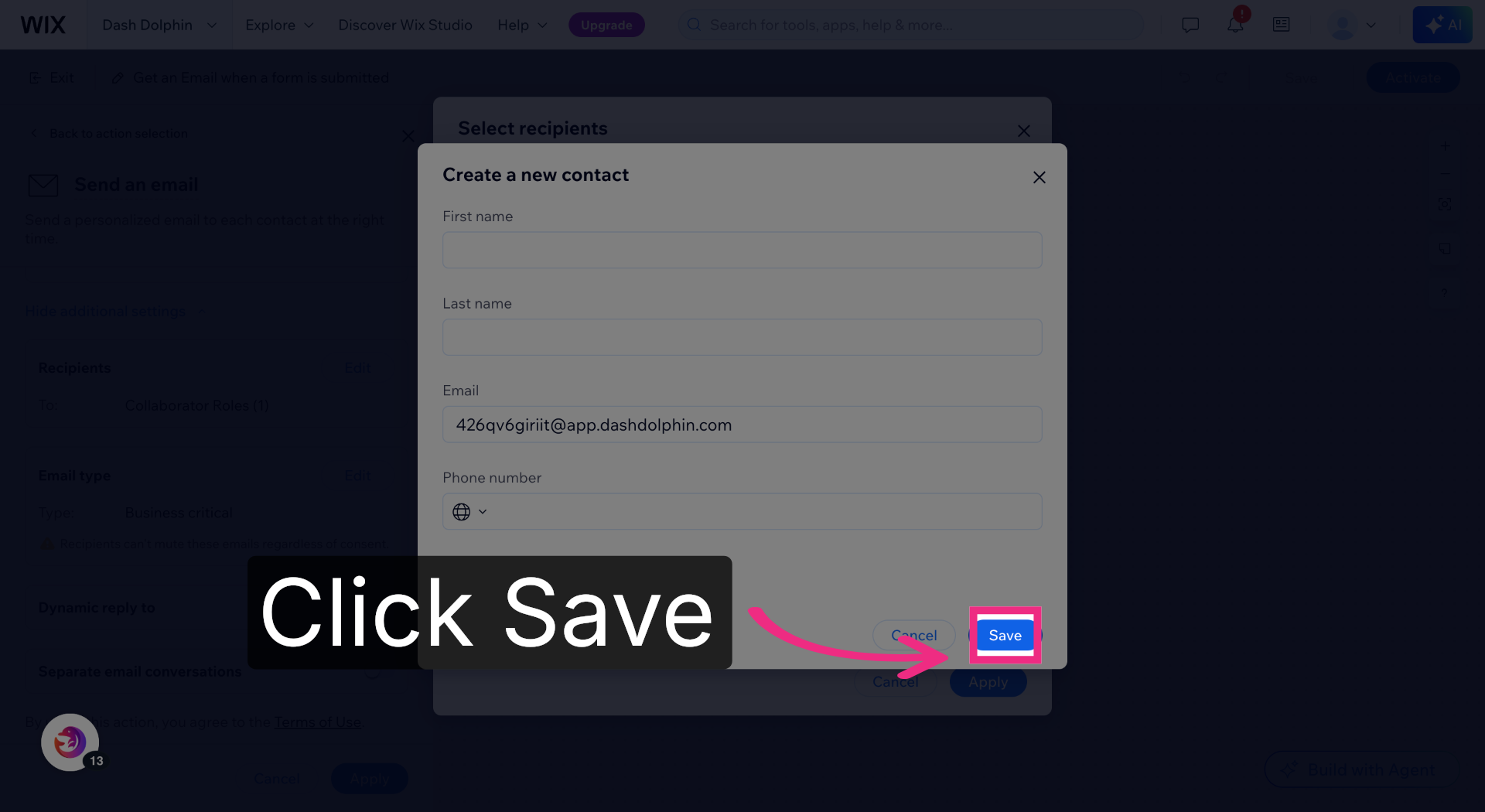
13. Enter Notification Email
Paste the Dash Dolphin notification email address.
14. Save Automation Settings
Save your automation settings.
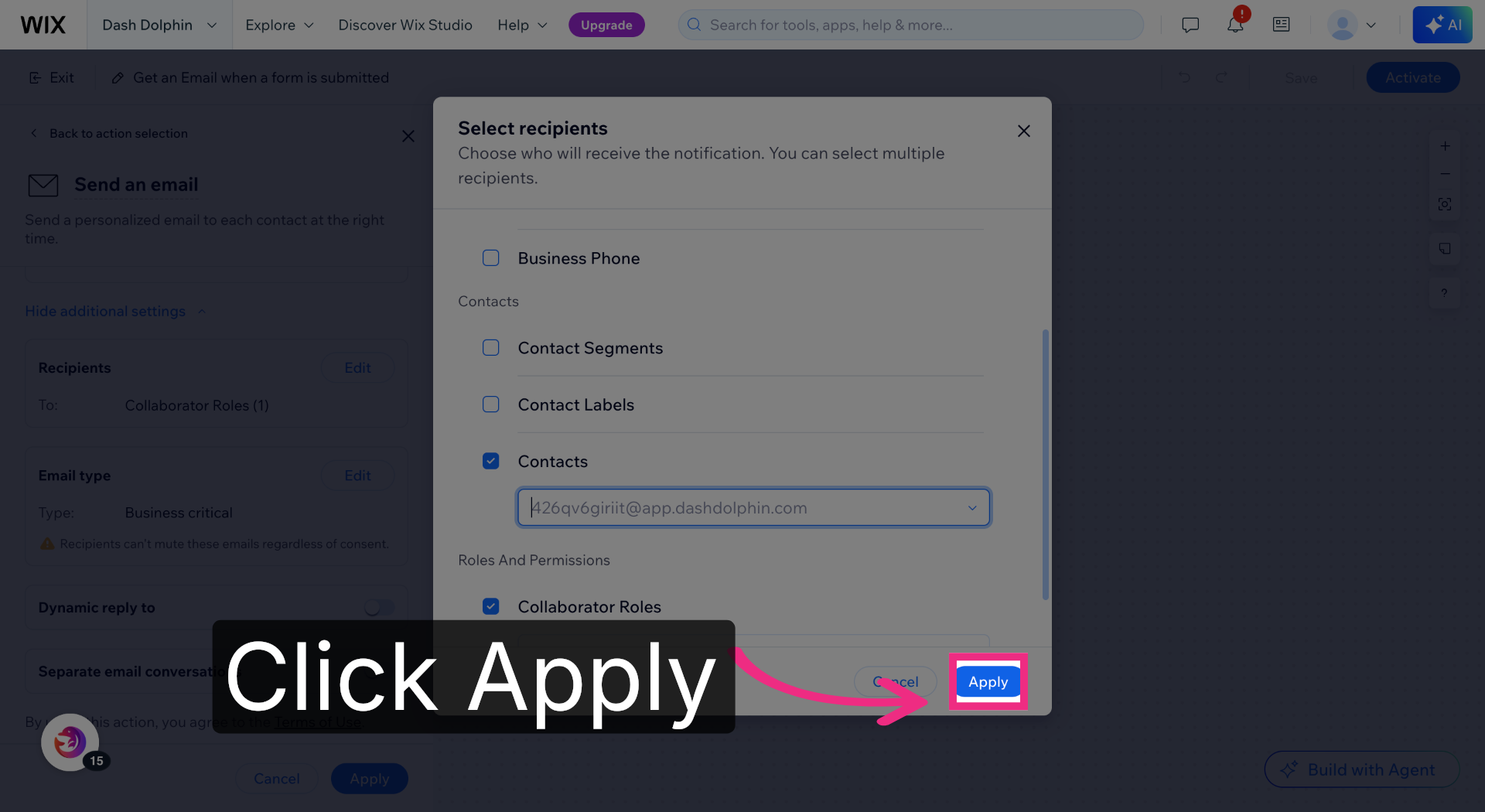
15. Apply Automation Changes
Apply your changes.
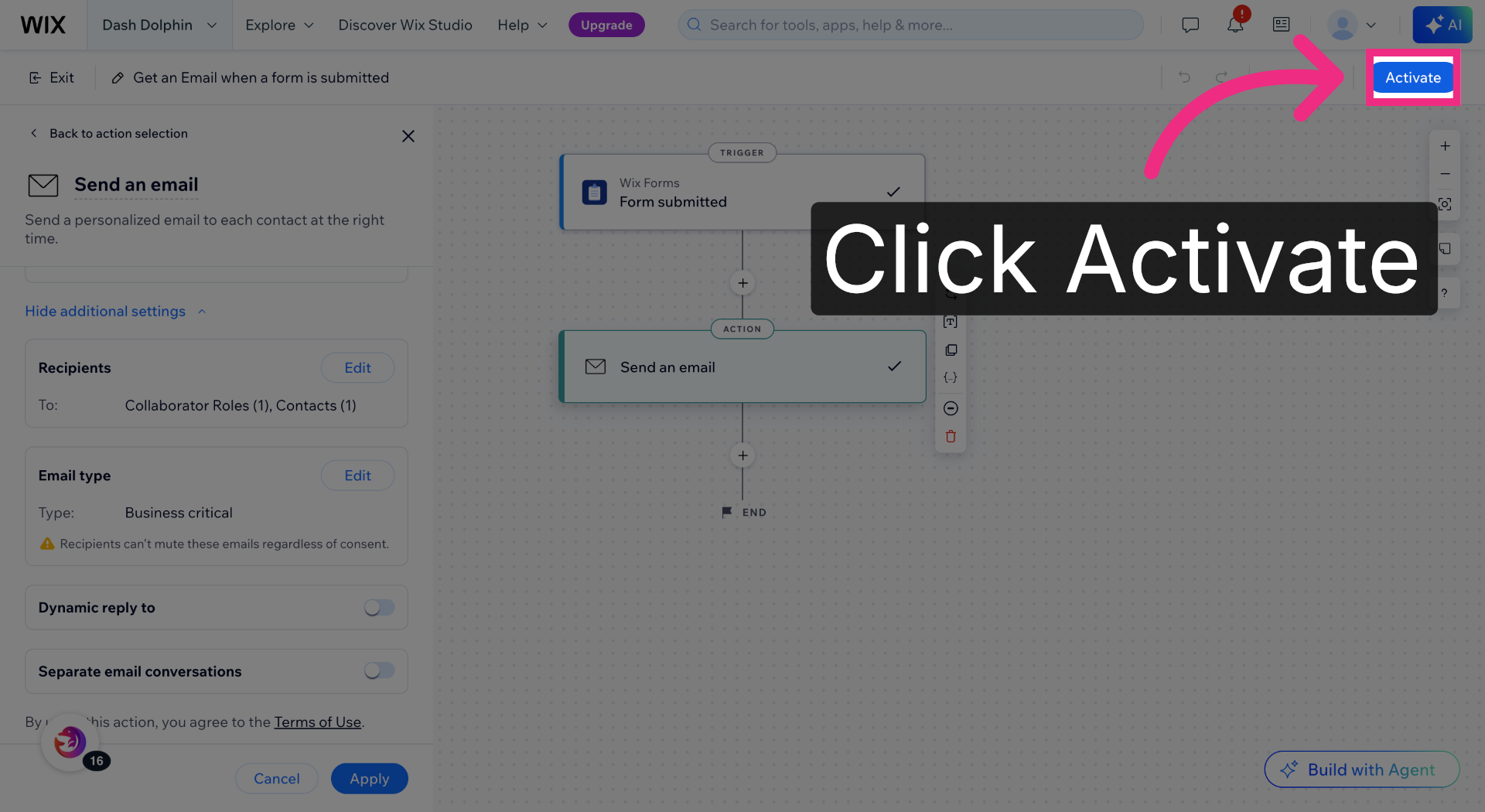
16. Activate Automation Workflow
Activate the automation so it fires on every form submission.
You have successfully configured your Wix form to send notification emails to Dash Dolphin, enabling instant SMS alerts. Test the setup by submitting a form and verifying the SMS notification delivery.
